

This guide explains how to fully replace a trip in Yaalago using updated GDS data. Let's look at the steps:
Step 1: Run The Show All Command
Run the show all command in the GDS to capture all new data. Copy the updated data to your clipboard for use in the next steps.
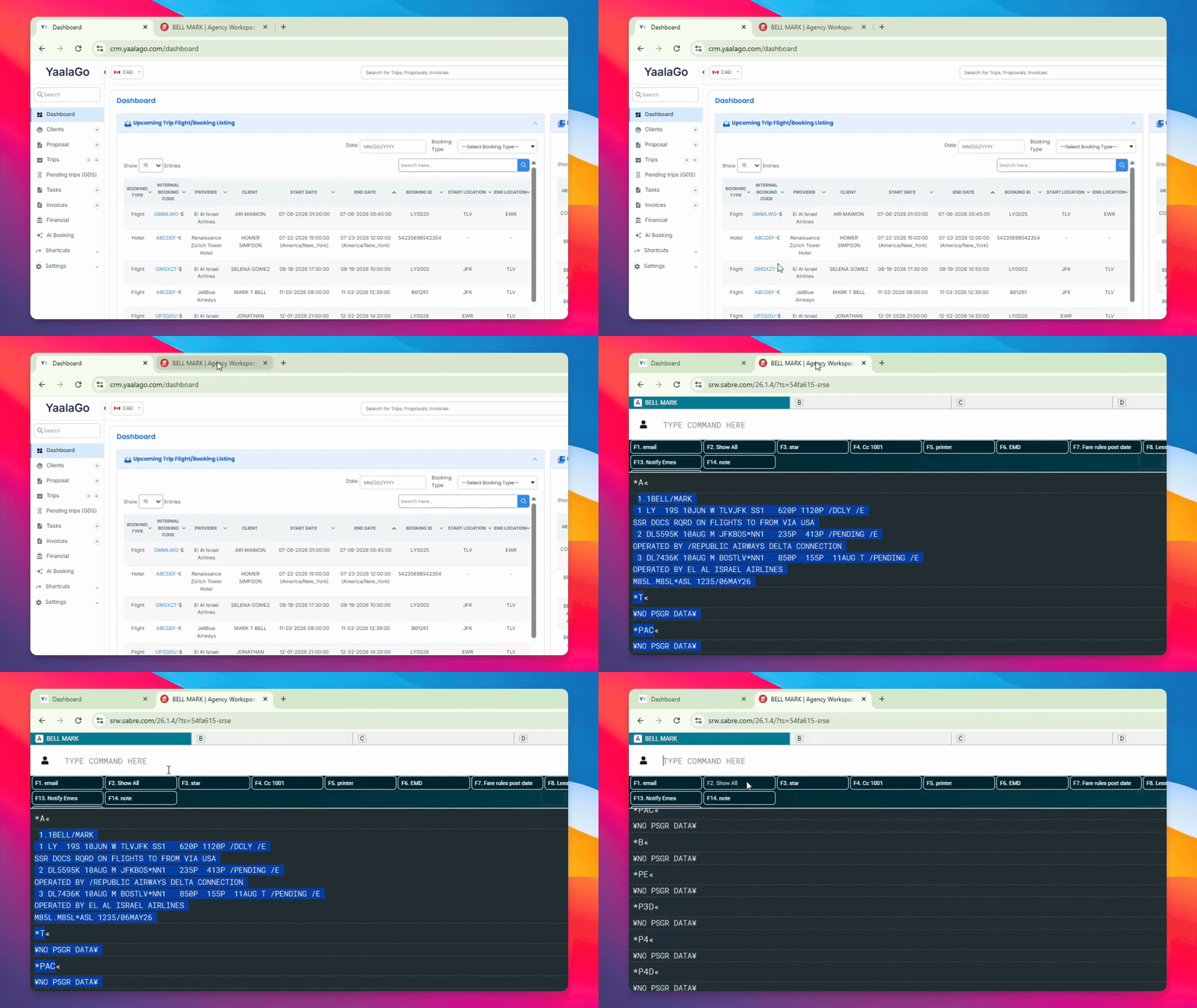
Step 2: Add Trip in GDS Flight
Navigate to the GDS Flight section, add the trip as you would for a regular booking, and click Convert.
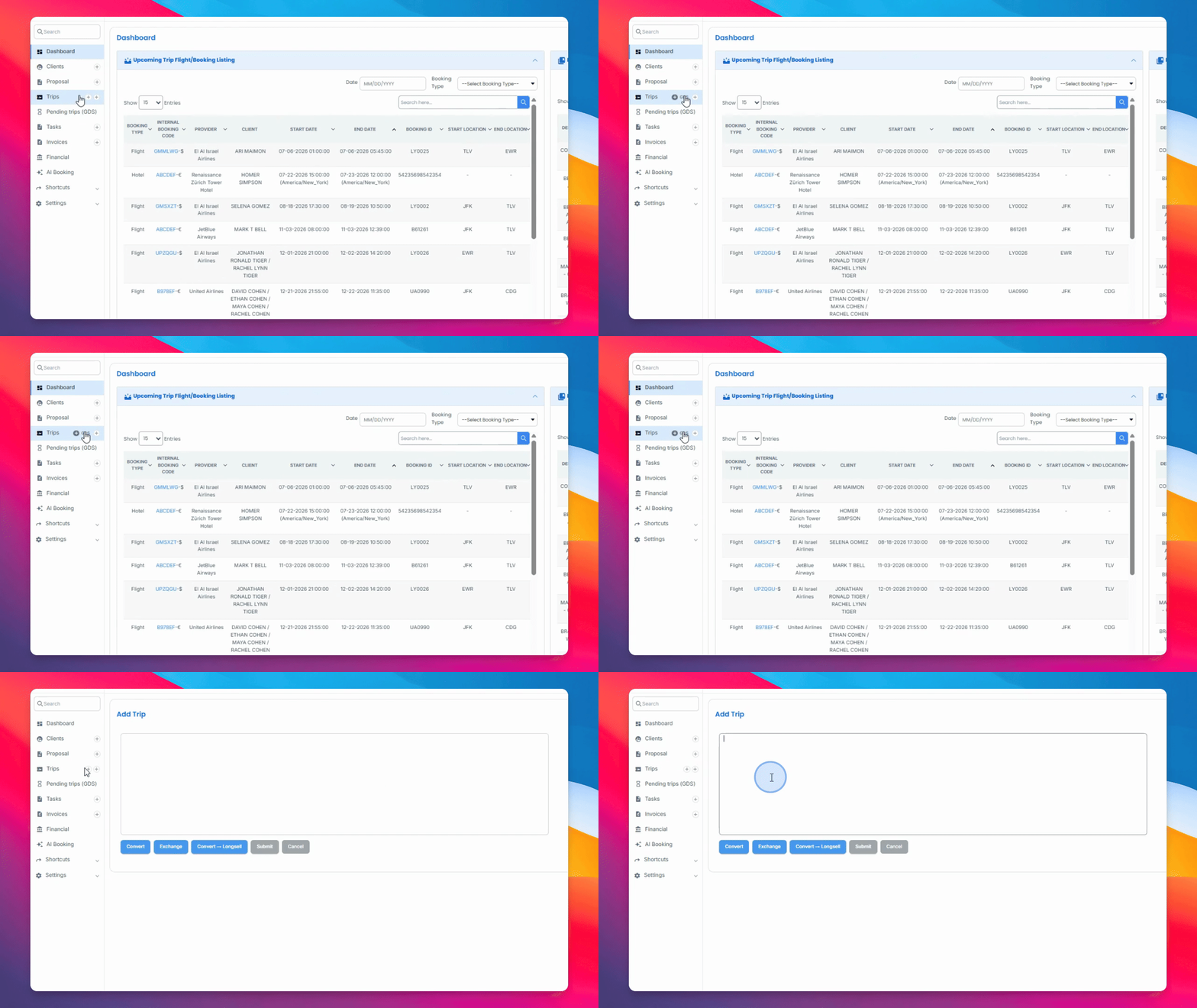
Step 3: Submit the Trip
Review the trip details. All financial information, including the commission structure, should remain unchanged. Click Submit to proceed.
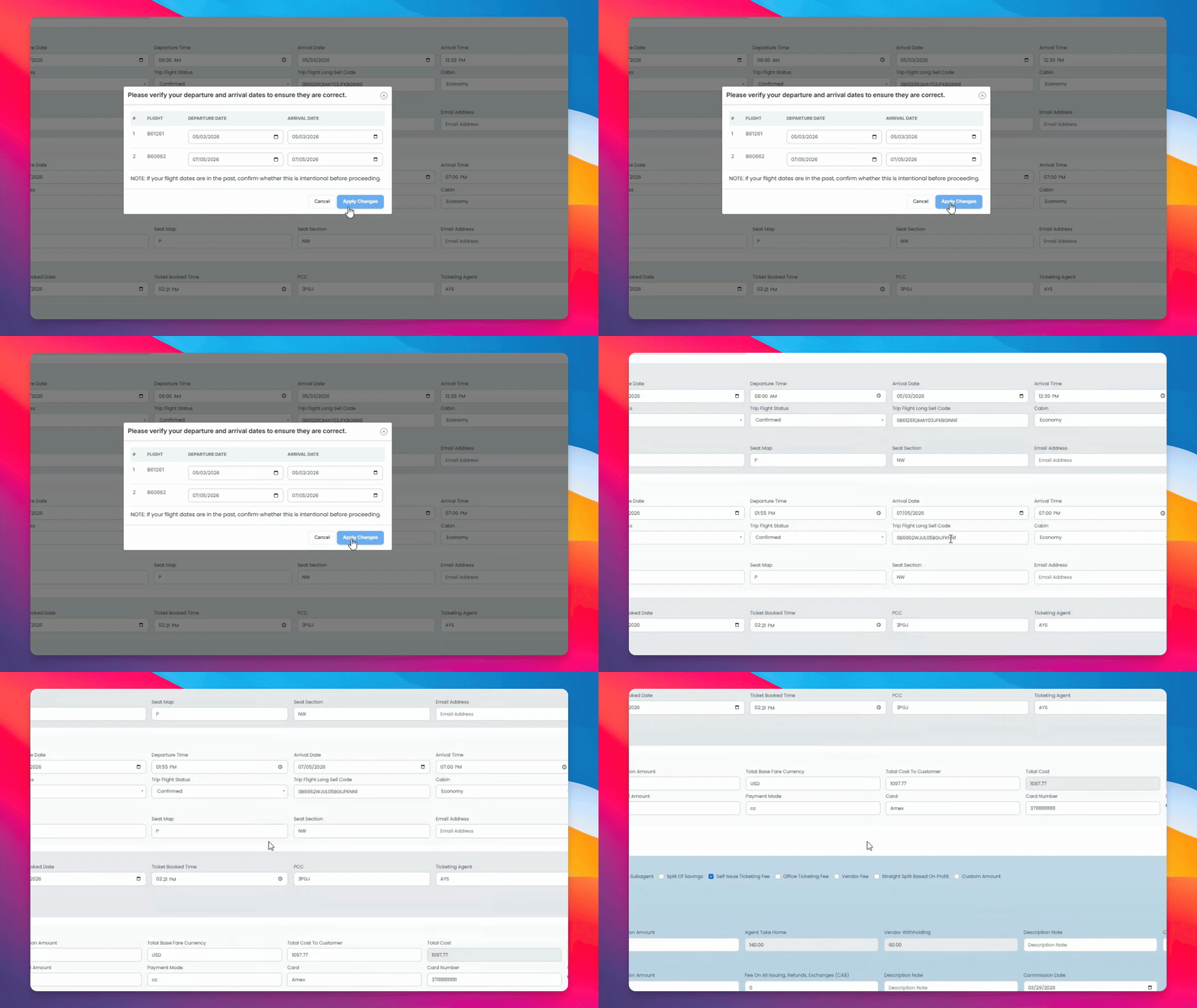
Step 4: Confirm Replacement
When prompted by the CRM with "Do you wish to replace trip?", click Replace to confirm and replace the trip.
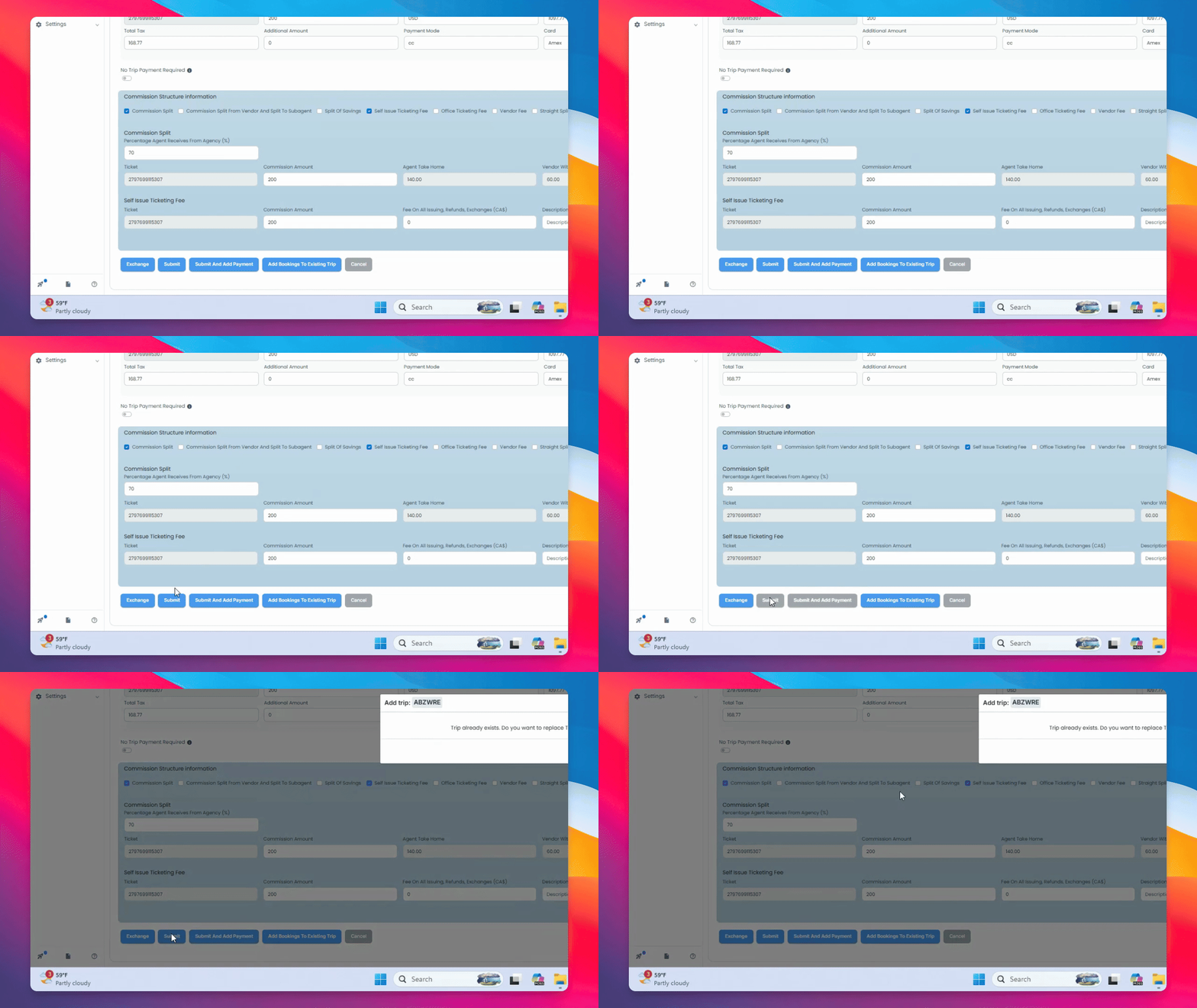
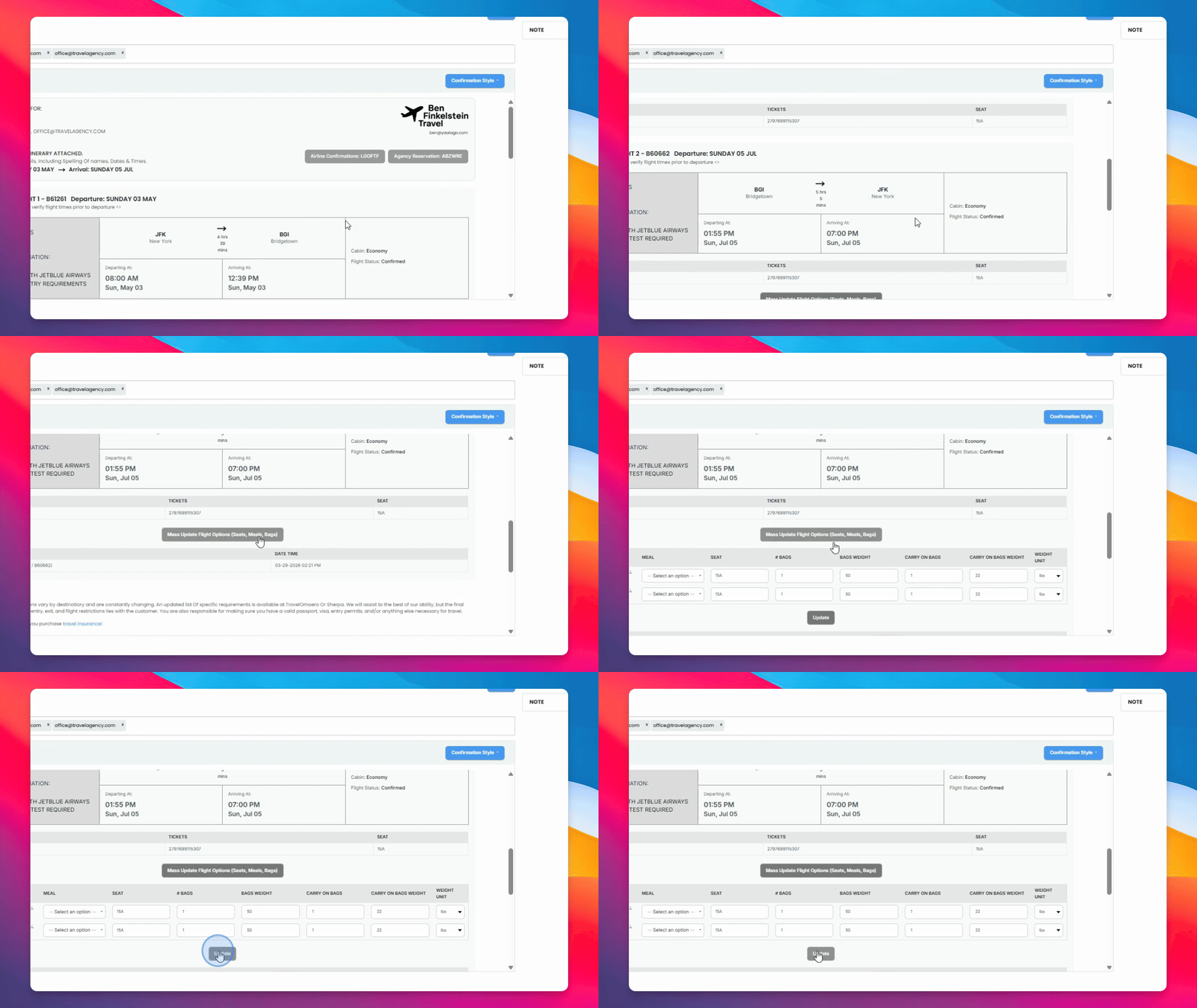
Step 5: Update Seats and Meals
Update seat assignments and meal preferences as needed since the trip is being replaced.
Associated payments will remain attached to the trip after replacement.
Replace is not the same as Exchange. Only use Replace when you want to fully overwrite the previous trip data and not retain any previous information.