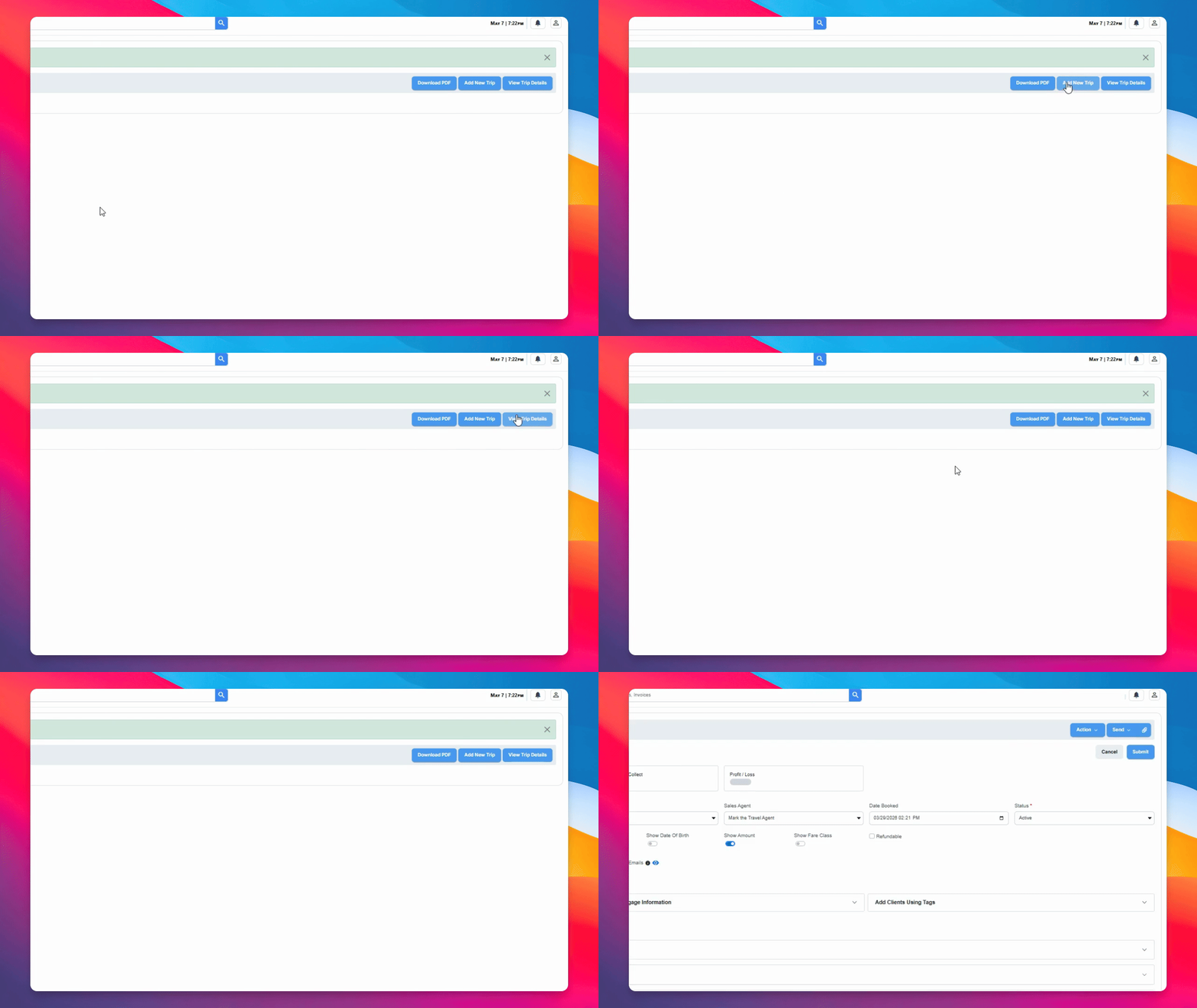

This guide explains how to add a trip from GDS to an existing trip in your CRM. Let's look at the steps:
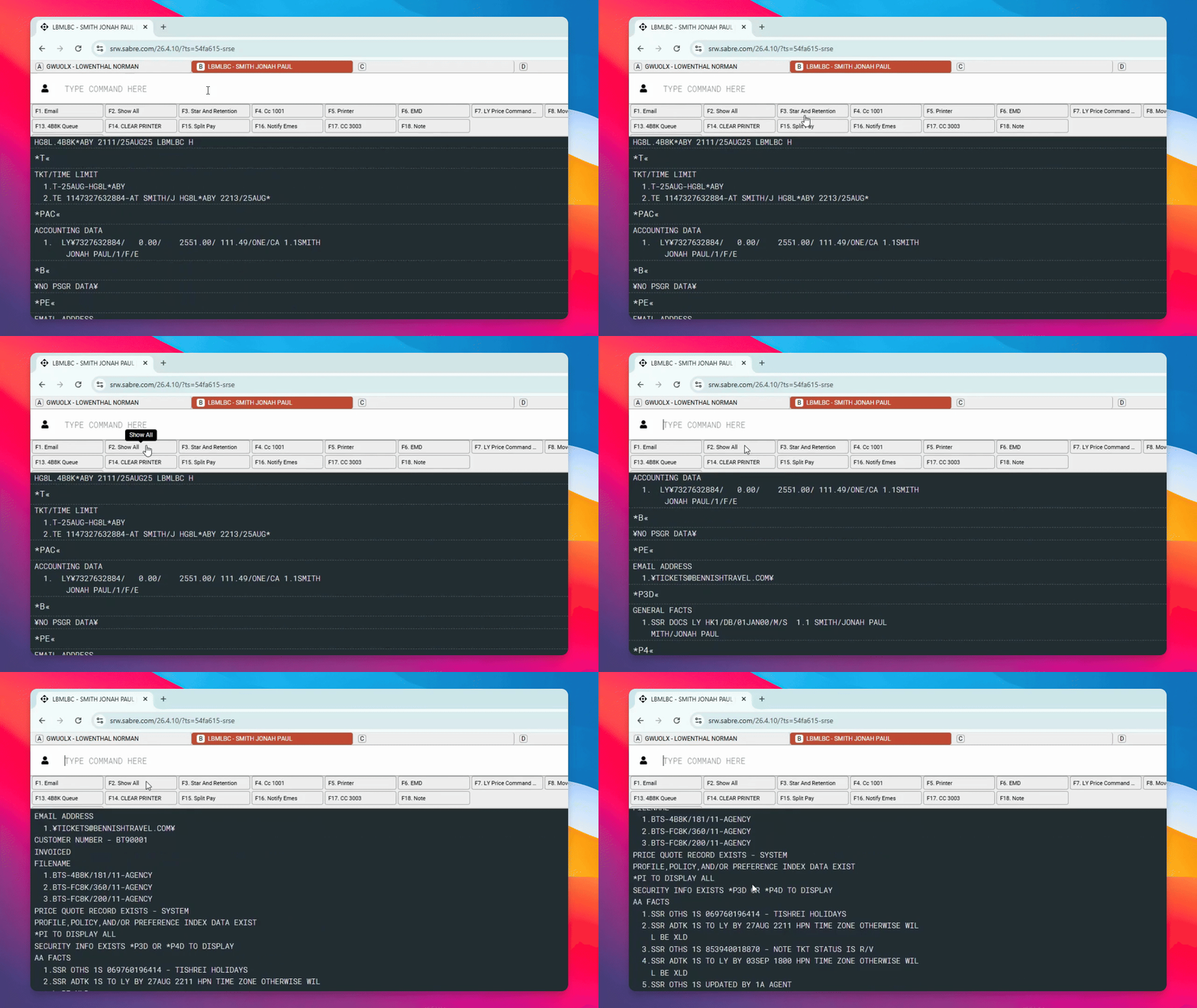
Step 1: Copy Trip Details from GDS
In the PNR, click Show All to expand all sections of the reservation. Highlight the relevant text and copy it to your clipboard.
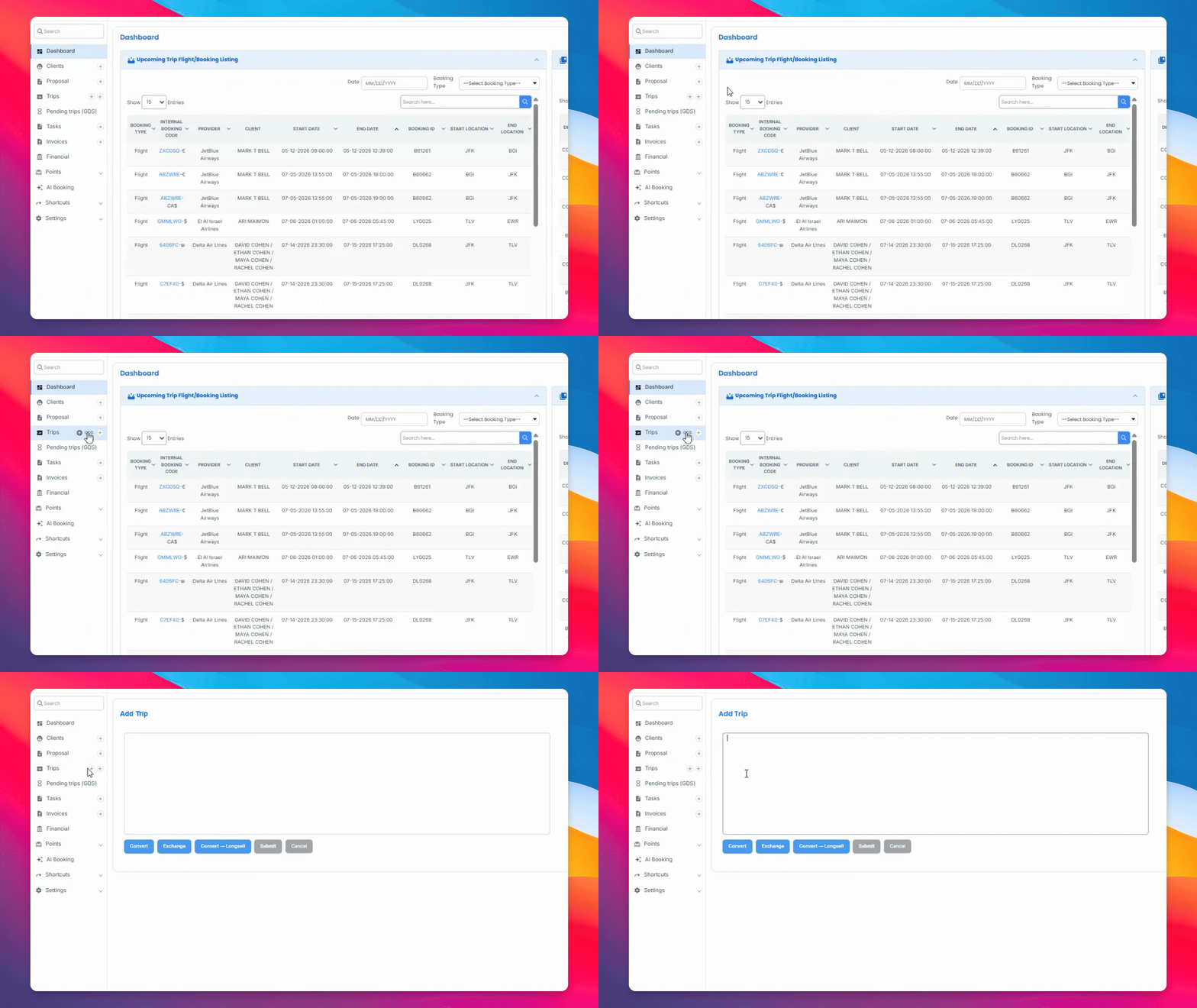
Step 2: Paste Details into New Trip
Open a new trip in the CRM and paste the copied text.
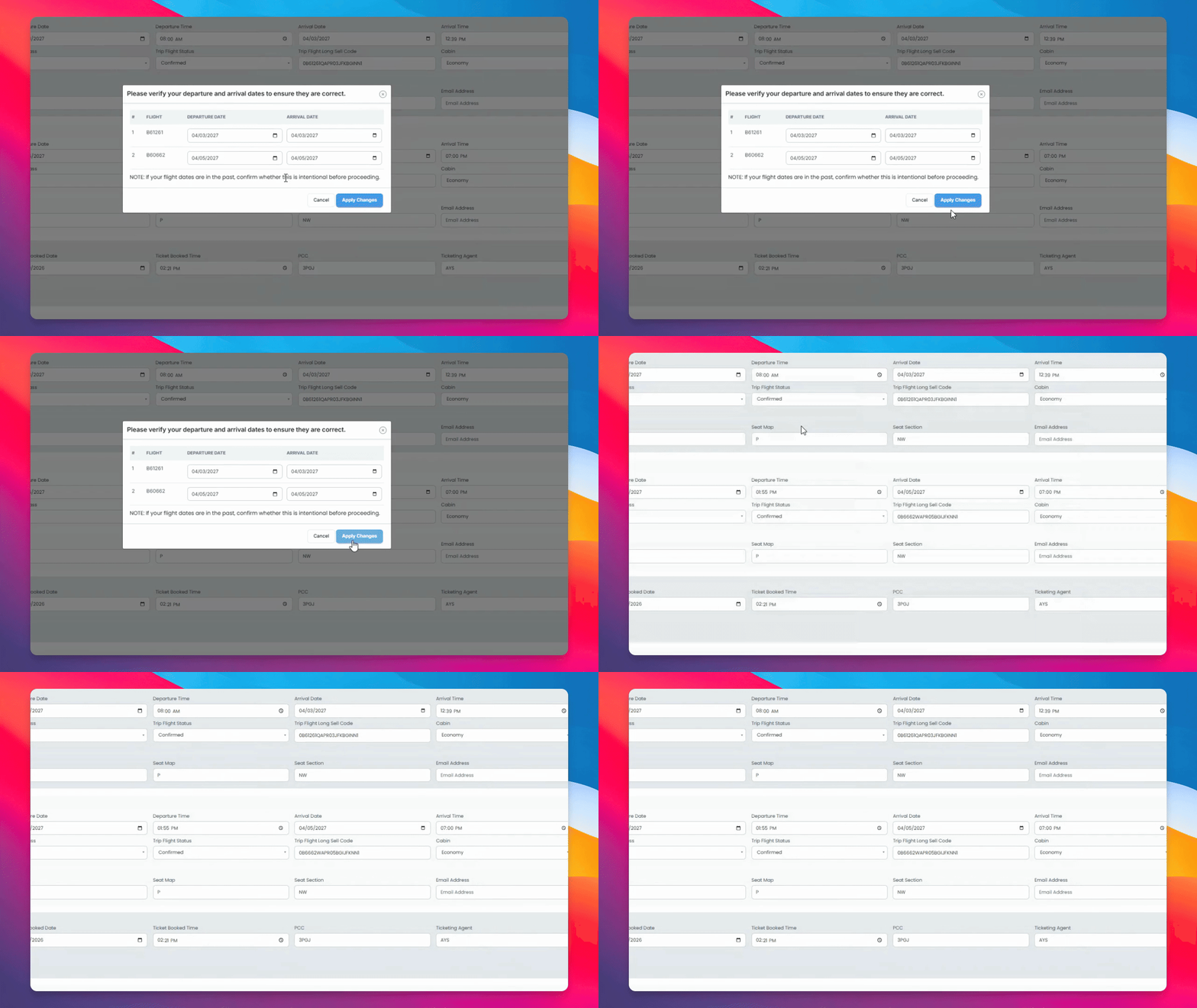
Step 3: Confirm Flight Information
Verify that the flights listed are correct.
Step 4: Verify Booking and Financial Details
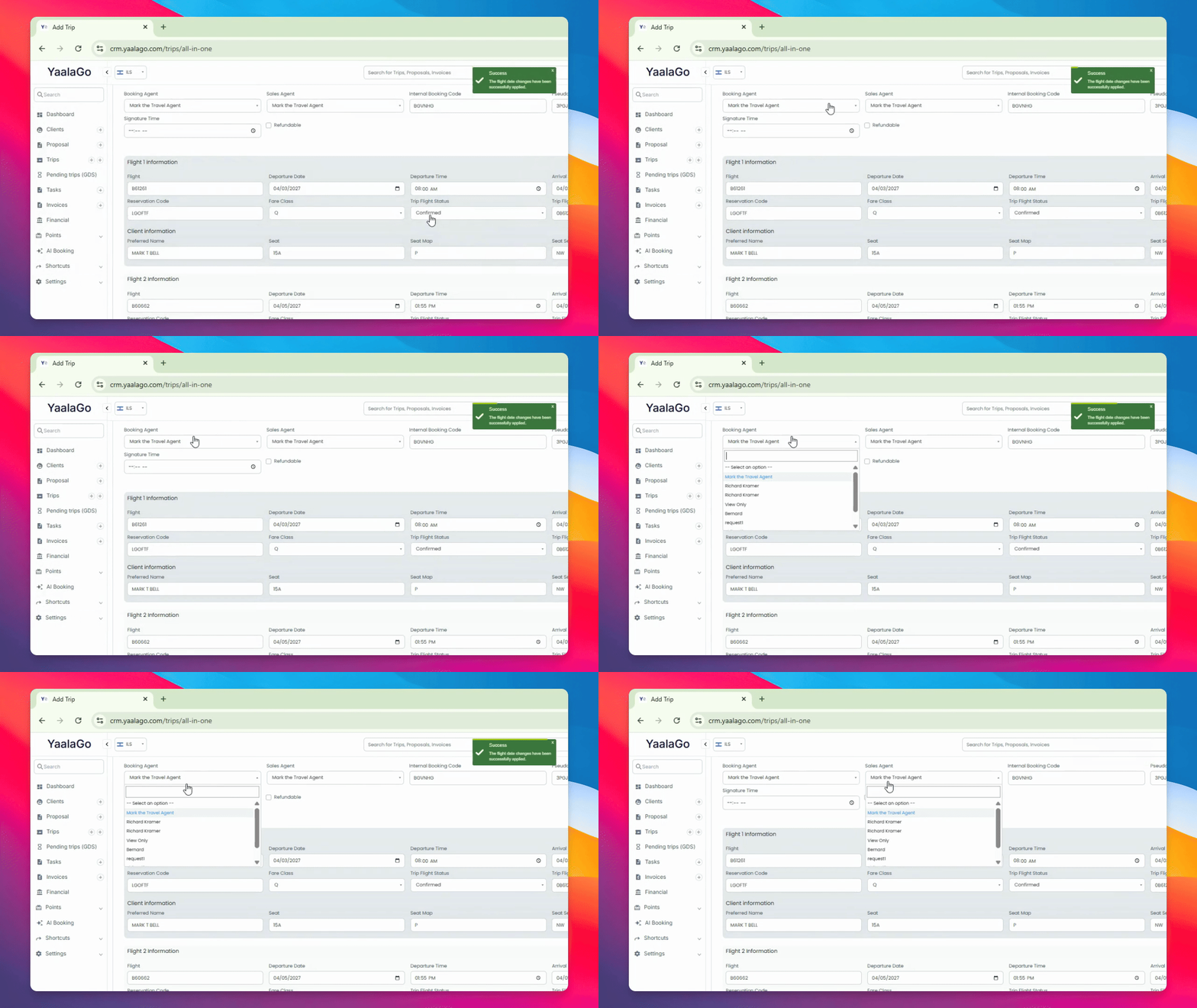
Check that the booking agency and sales agents are correct, all tickets are assigned to the correct flights, and that all financials, including upsells, are accurate.
Step 5: Add Bookings to Existing Trip
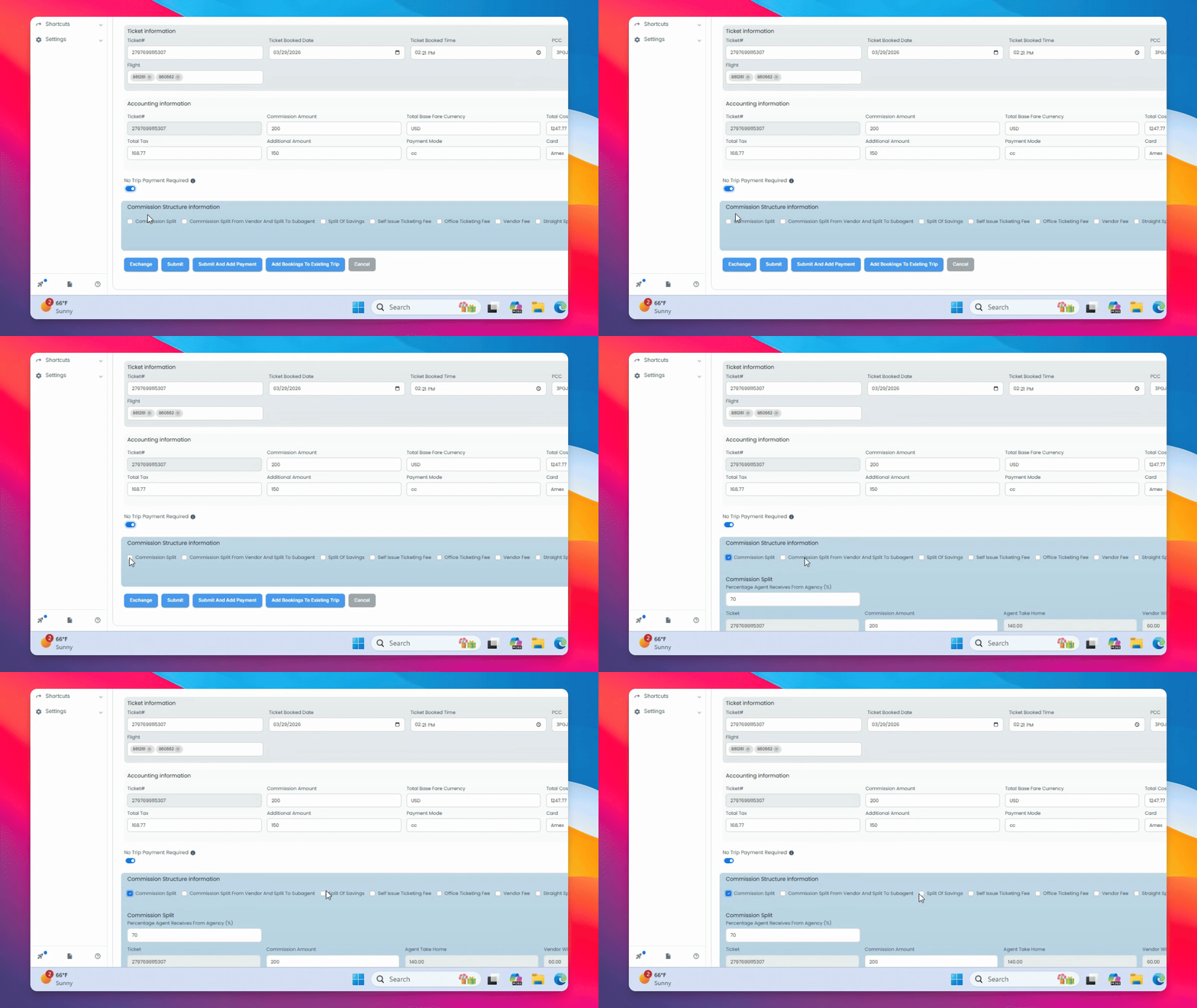
After confirming commissions and all other fees, click Add Bookings to existing Trip.
Step 6: Select the Existing Trip
When prompted, select the appropriate trip from the drop-down menu.
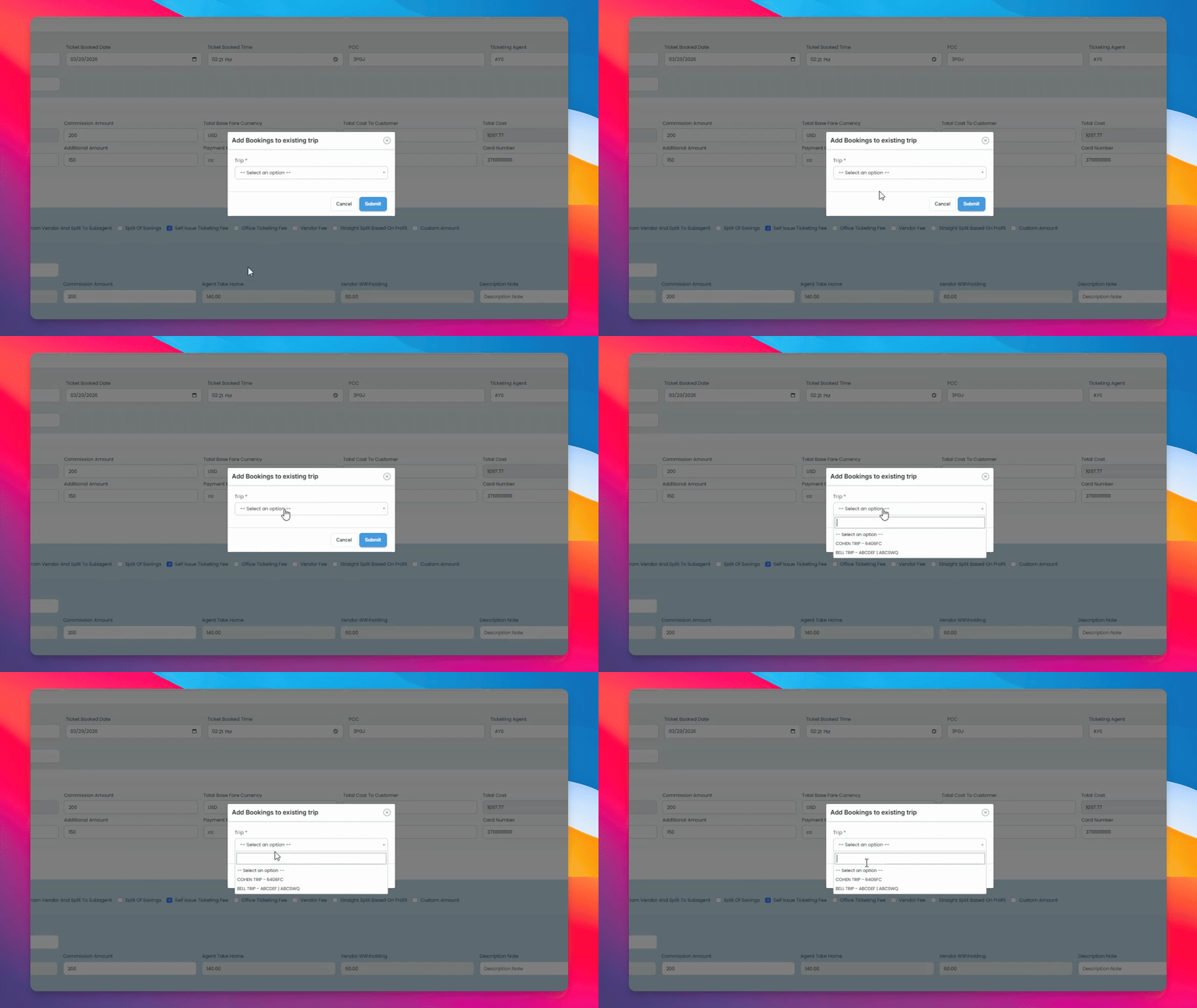
Your trip has now been successfully added to the existing CRM trip.