

In this video, we'll walk through how to convert your client information into a format that can be pasted directly into Sabre or Amadeus. Let's look at the steps:
Step 1: Access Convert Pax
In the shortcuts menu, navigate to the Prep Travlers section and add your clients.
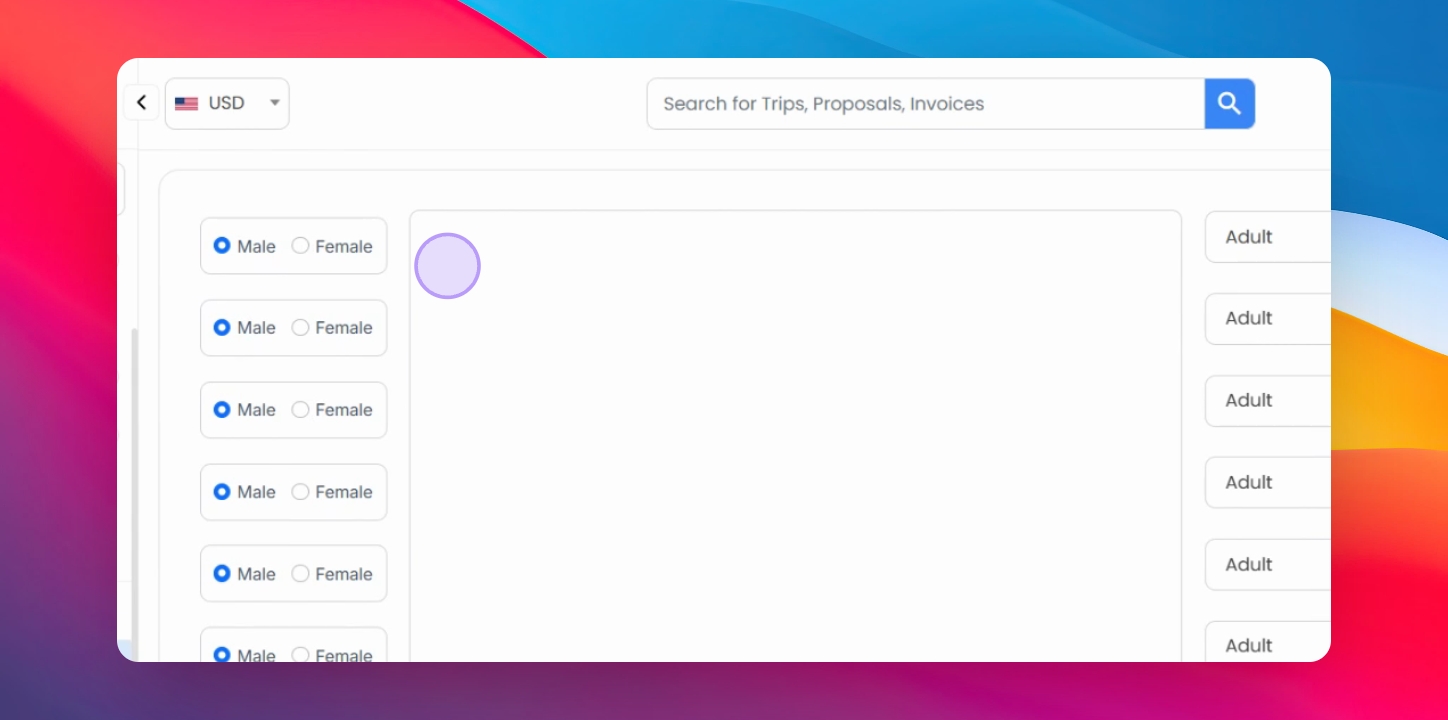
Step 2: Adjust Client Details
For each client, make sure to specify their gender (male or female) and passenger type (adult or child).
View Available Formats
Below the client details, you'll see all the available formats that can be used for the conversion, including frequent flyer formats and email.
Step 3: Upload Passport Image
If needed, upload the client's passport image in the designated field.
Automatic Passport Expiry Reminder
Once a passport is uploaded, the system will automatically generate an email reminder six months before the passport expires, so you never miss a renewal.
Step 4: Adjust Settings and Convert
Adjust any remaining settings according to your preference, then click Convert and Copy.
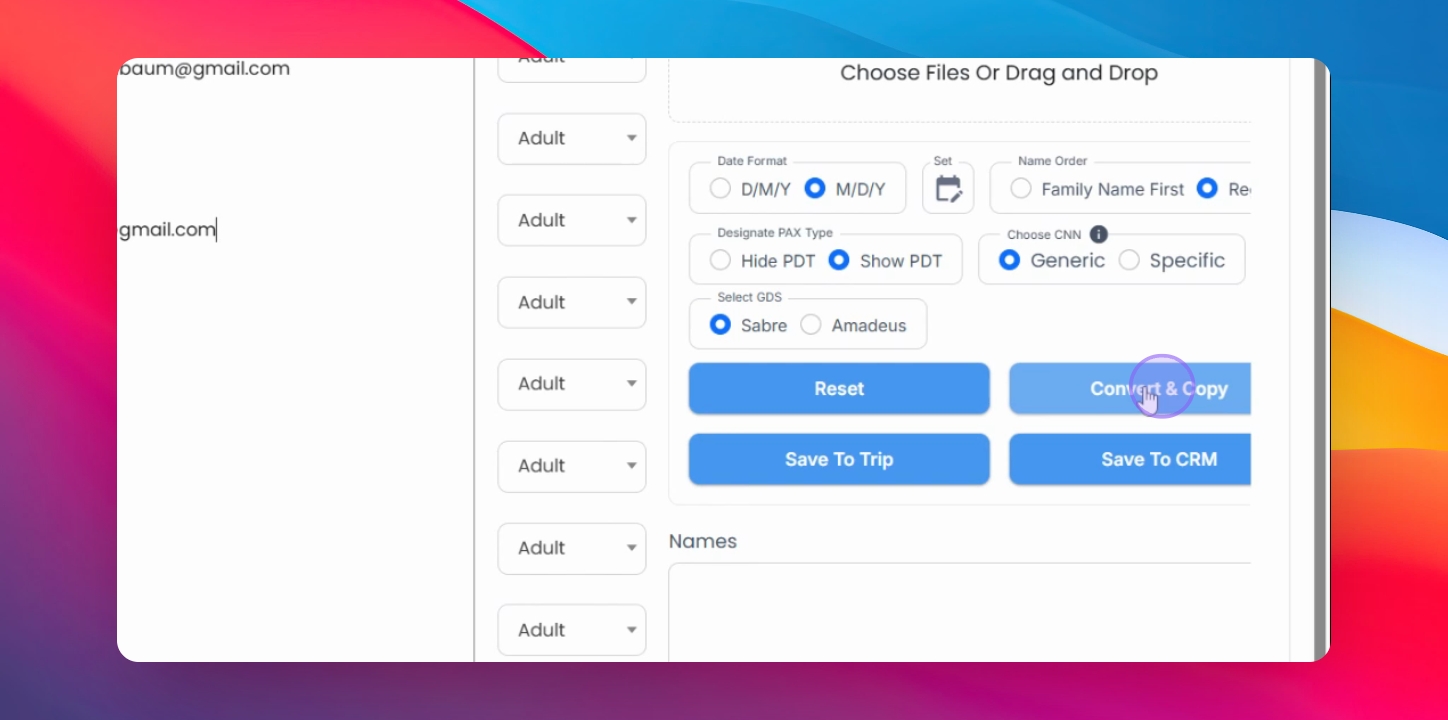
Once converted, the information is automatically copied to your clipboard. You can then paste it directly into Sabre or Amadeus.
Save to CRM or Trip
Finally, you can save the converted client information to your CRM or attach it to an existing trip for easy reference later.