

Let's discuss bringing over a non GDS booking by using our AI booking tool. Let's look at the steps:
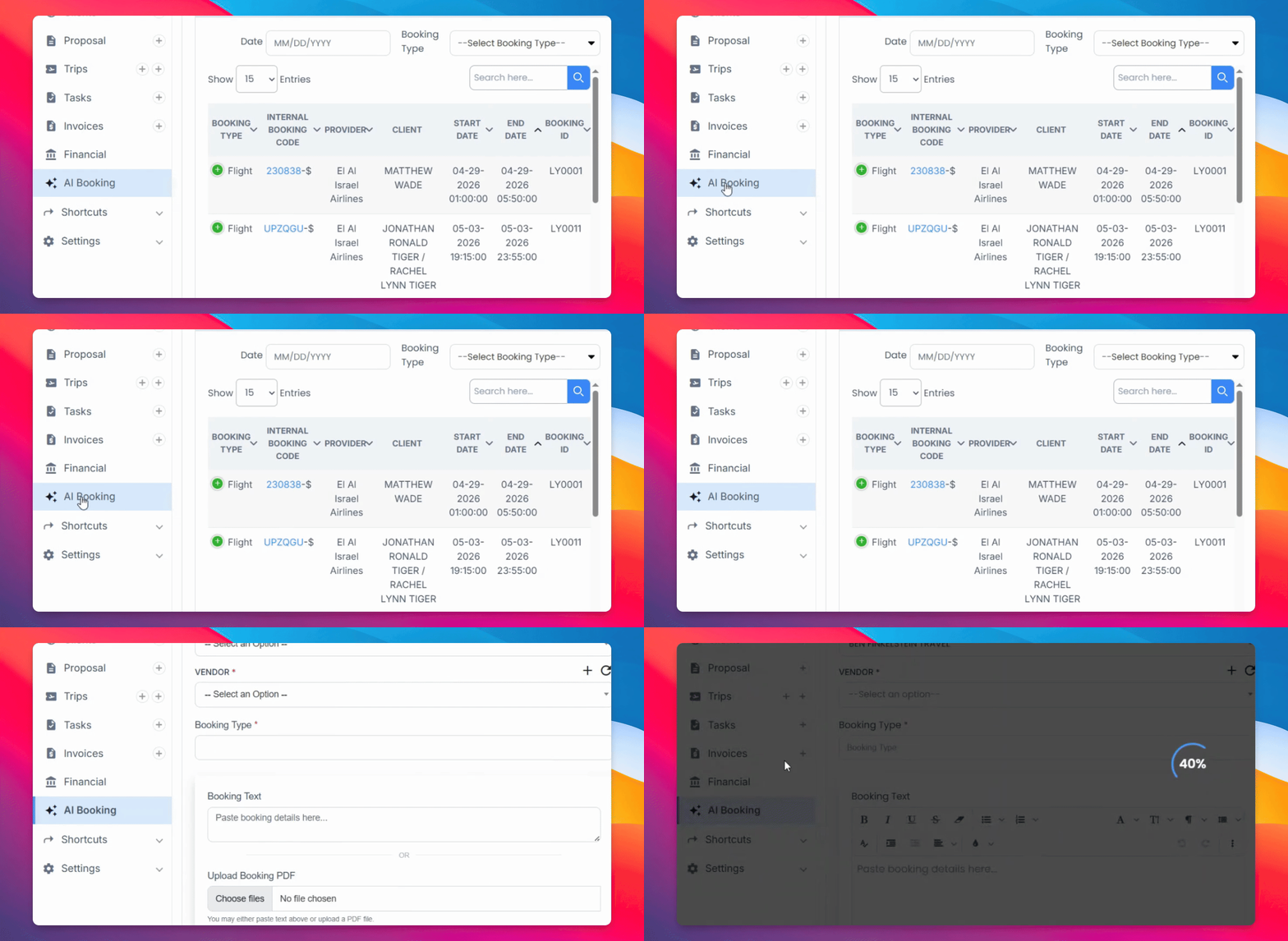
Step 1: Select AI Booking
Head over to the menu and select AI Booking in this section above.
Step 2: Add Vendor
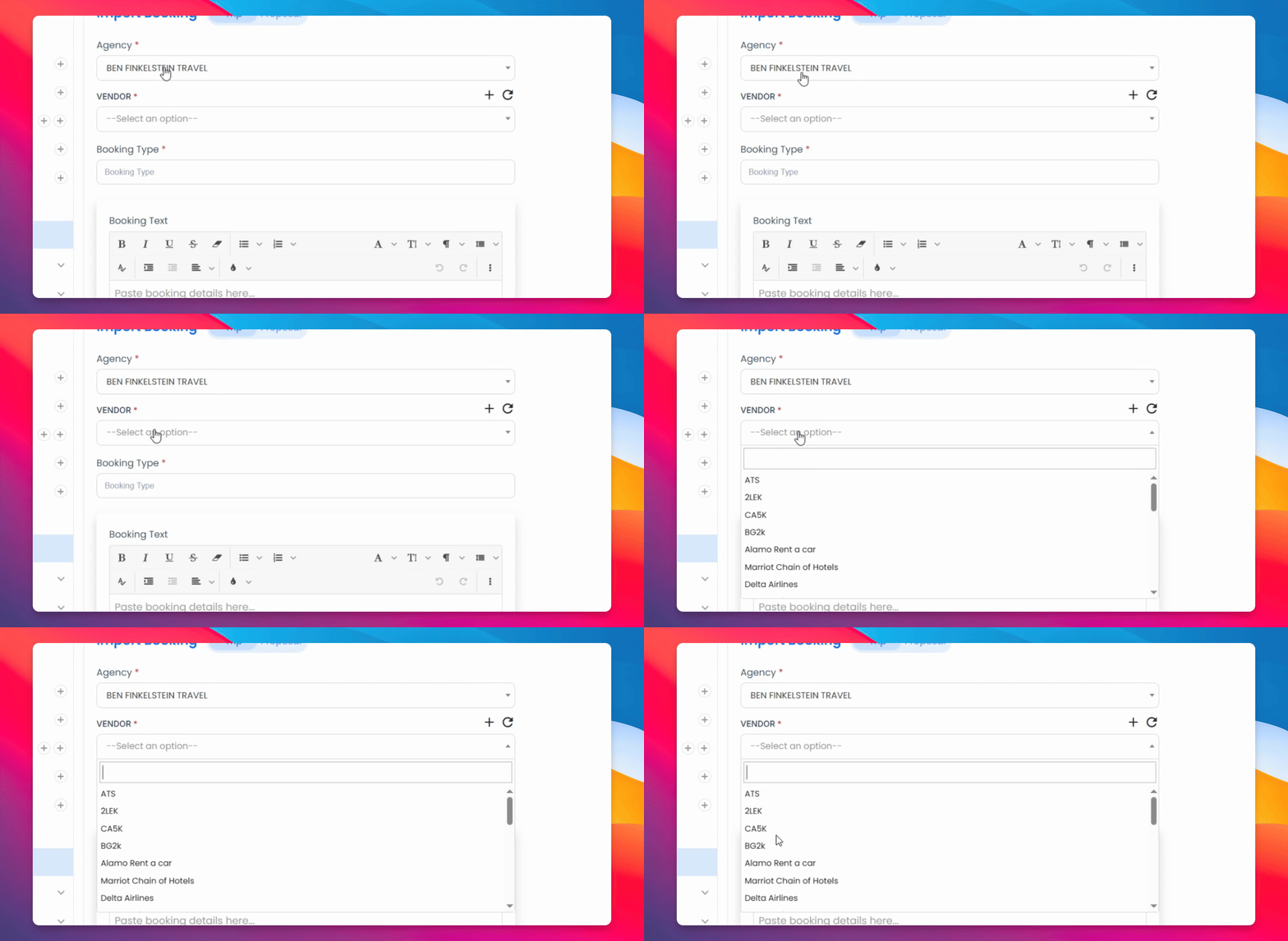
You can either add it directly into a trip or into a proposal. Start by selecting your agency and adding your vendor.
Step 3: Add Vendor Information
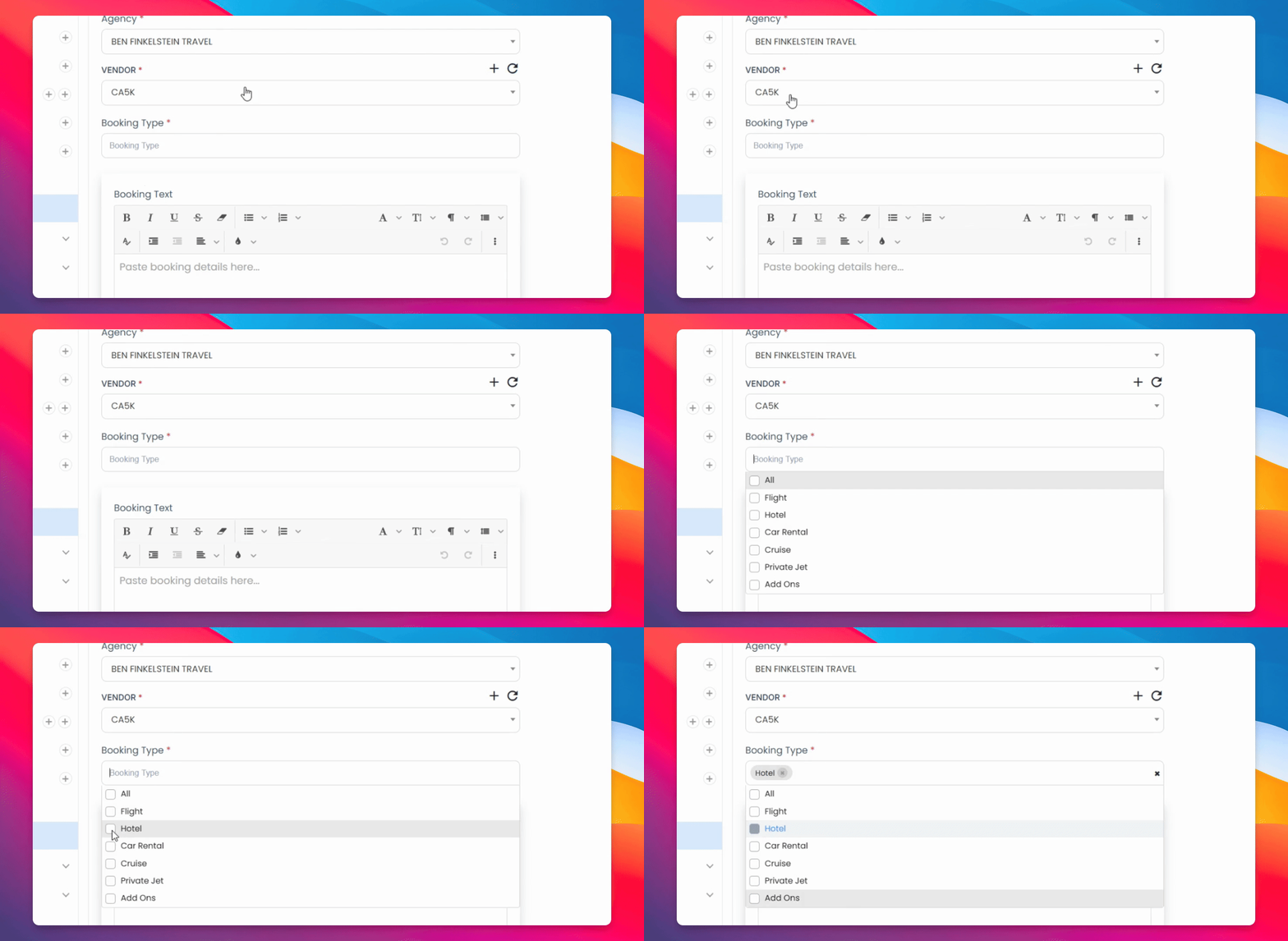
If your vendor doesn't show up on the list below, press the plus icon, add in the correct information, submit and refresh.
Step 4: Refresh Vendor List
Once refreshing, the vendor will show up in the list below. Select your booking type.
Step 5: Enter Booking Details
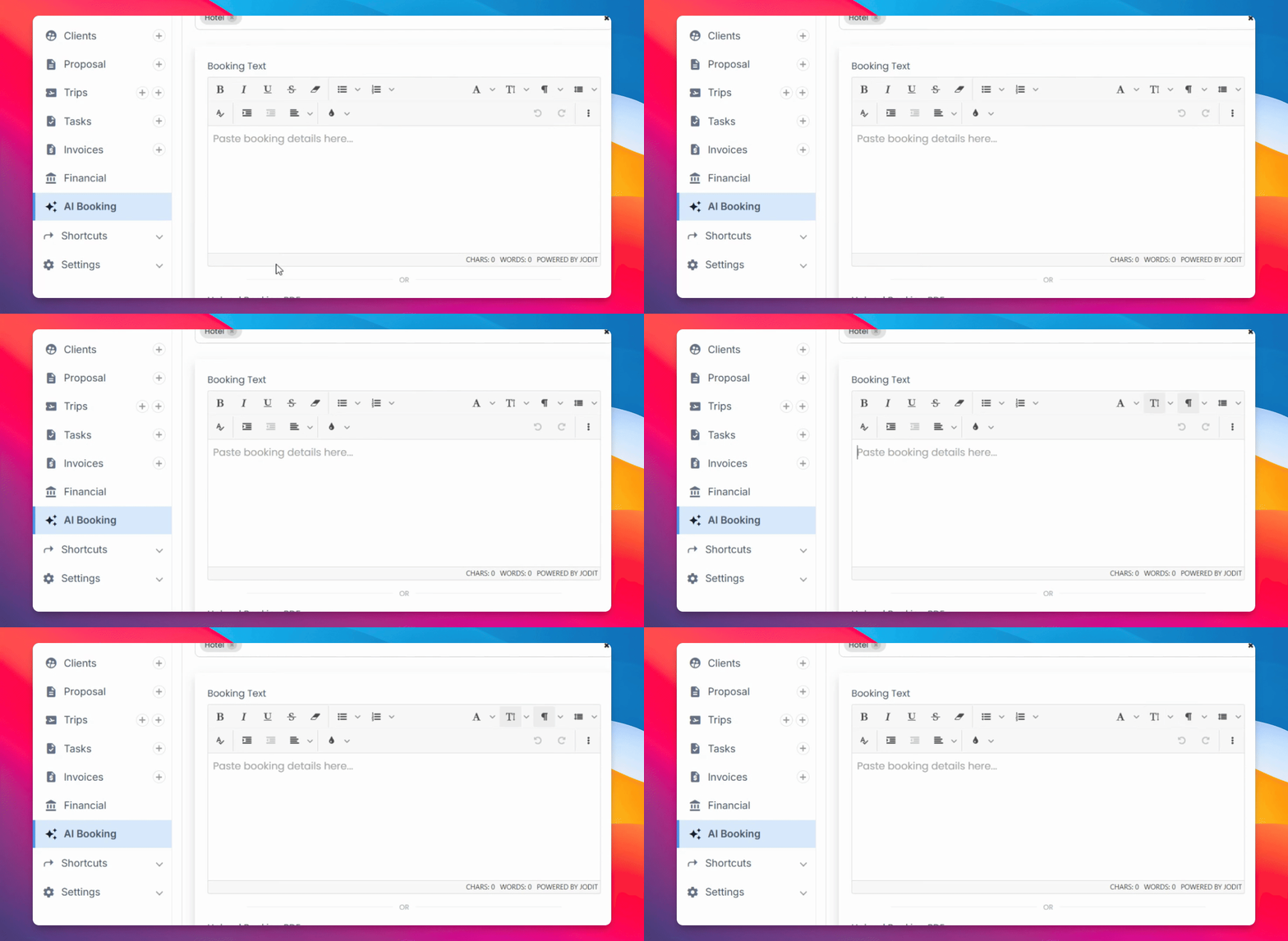
You can either put the booking text directly here or upload a PDF in this section.
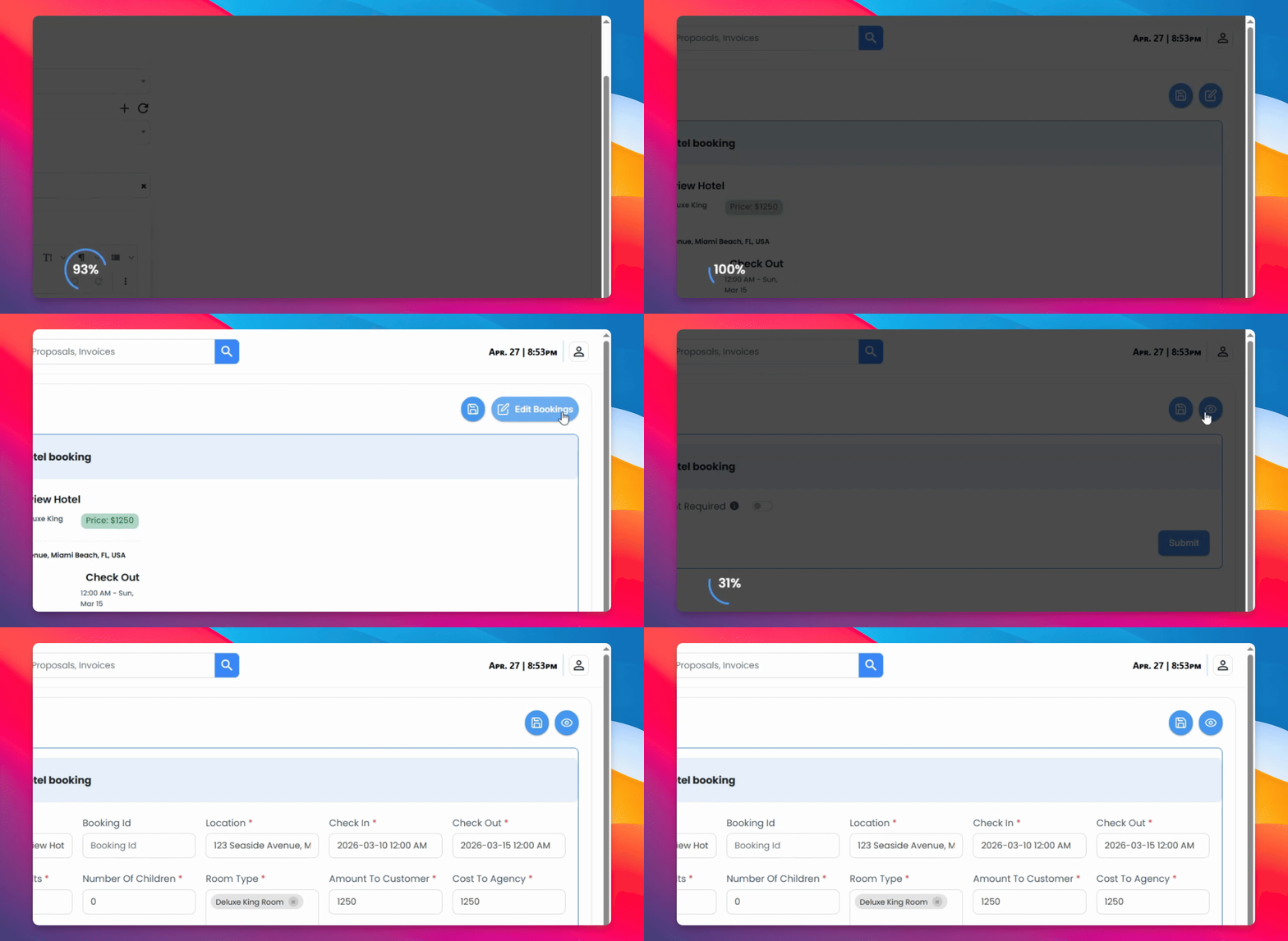
Step 6: Review Booking
Once uploaded, head over to the booking and edit to review. Make sure that all the information is correct.
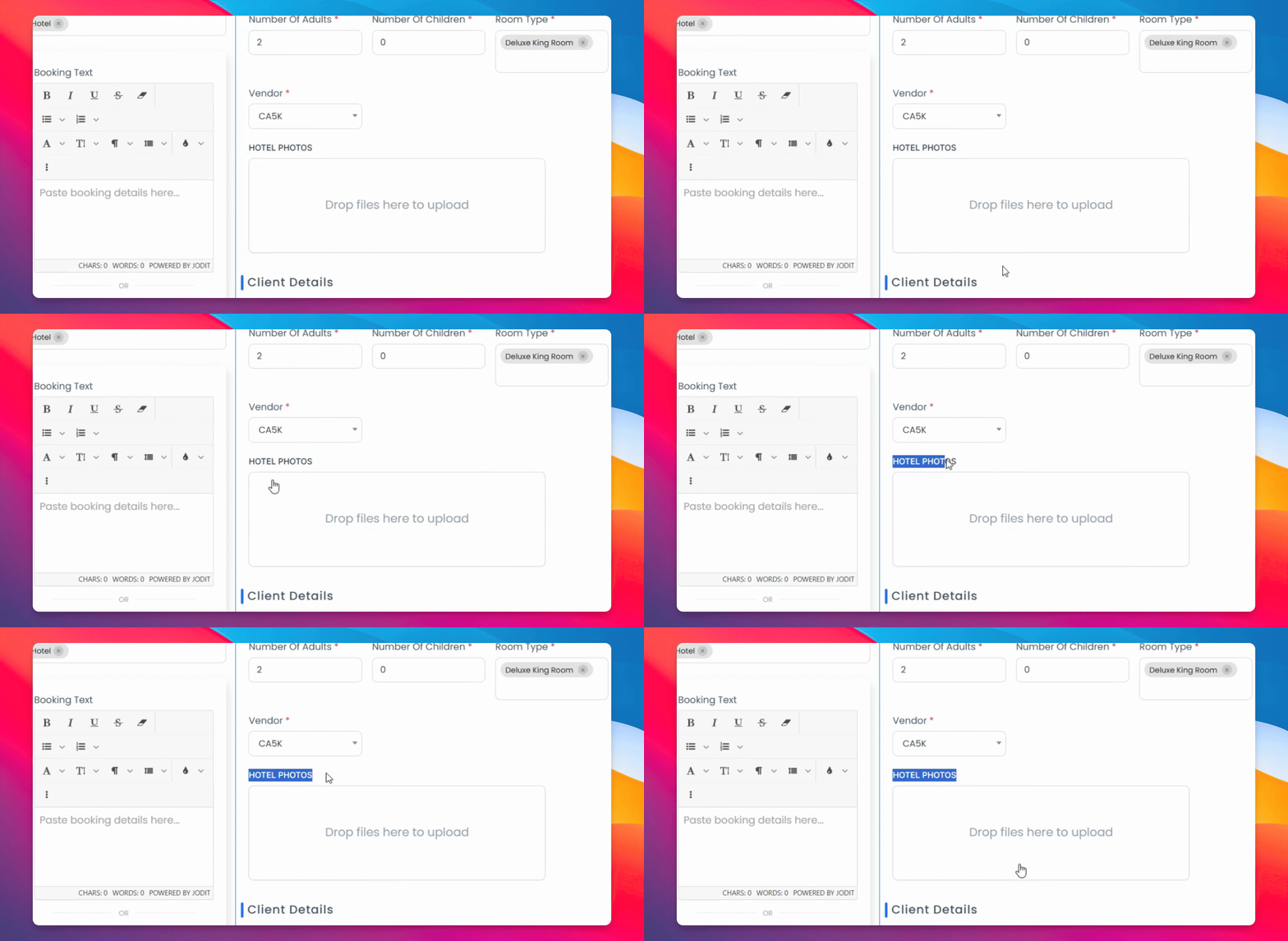
Step 7: Add Additional Information
You can also add in hotel photos or any other relevant information that you want your client to see.
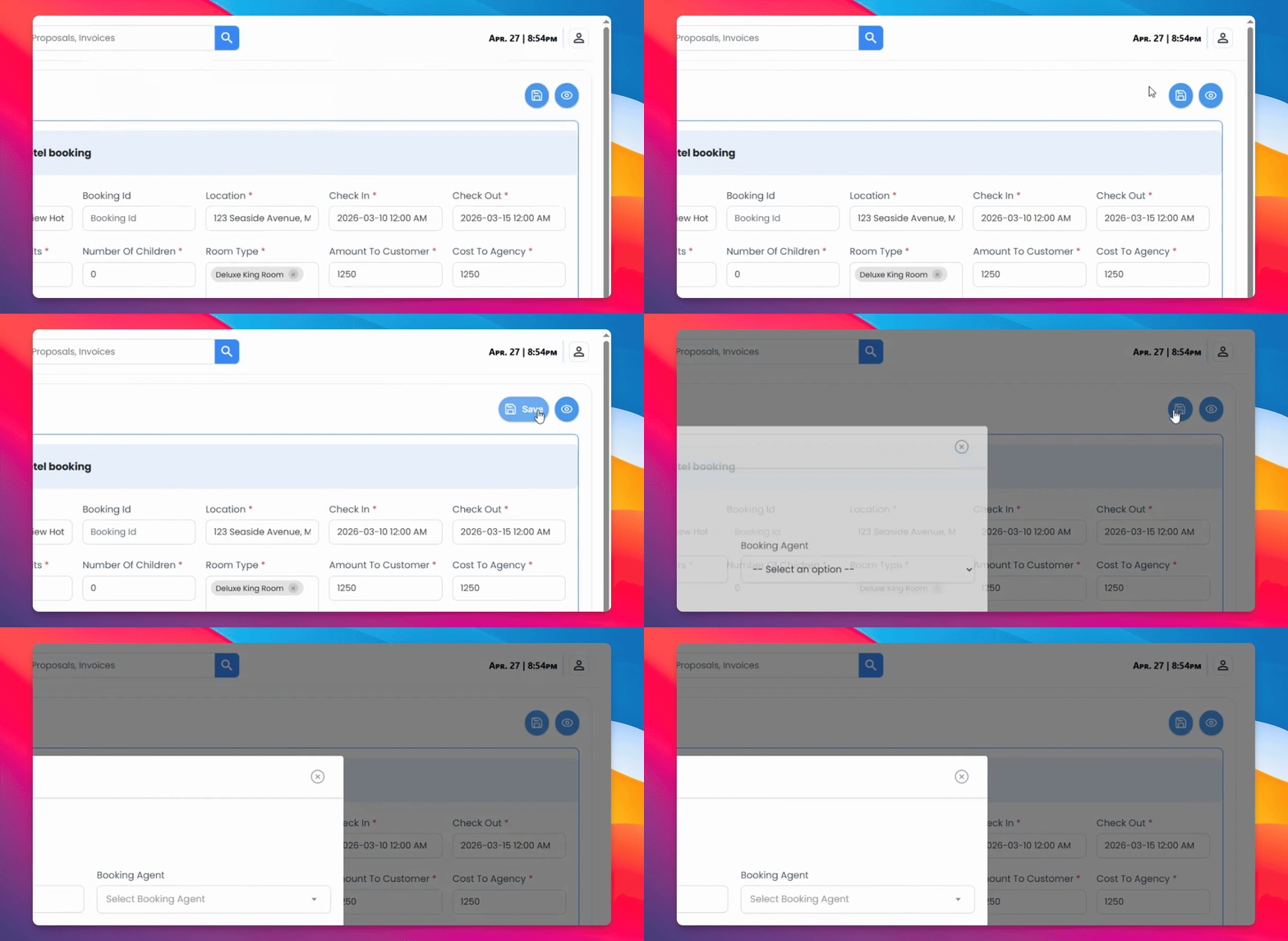
Step 8: Save Booking
Go ahead and save. You can either add it into a new trip or an existing trip.
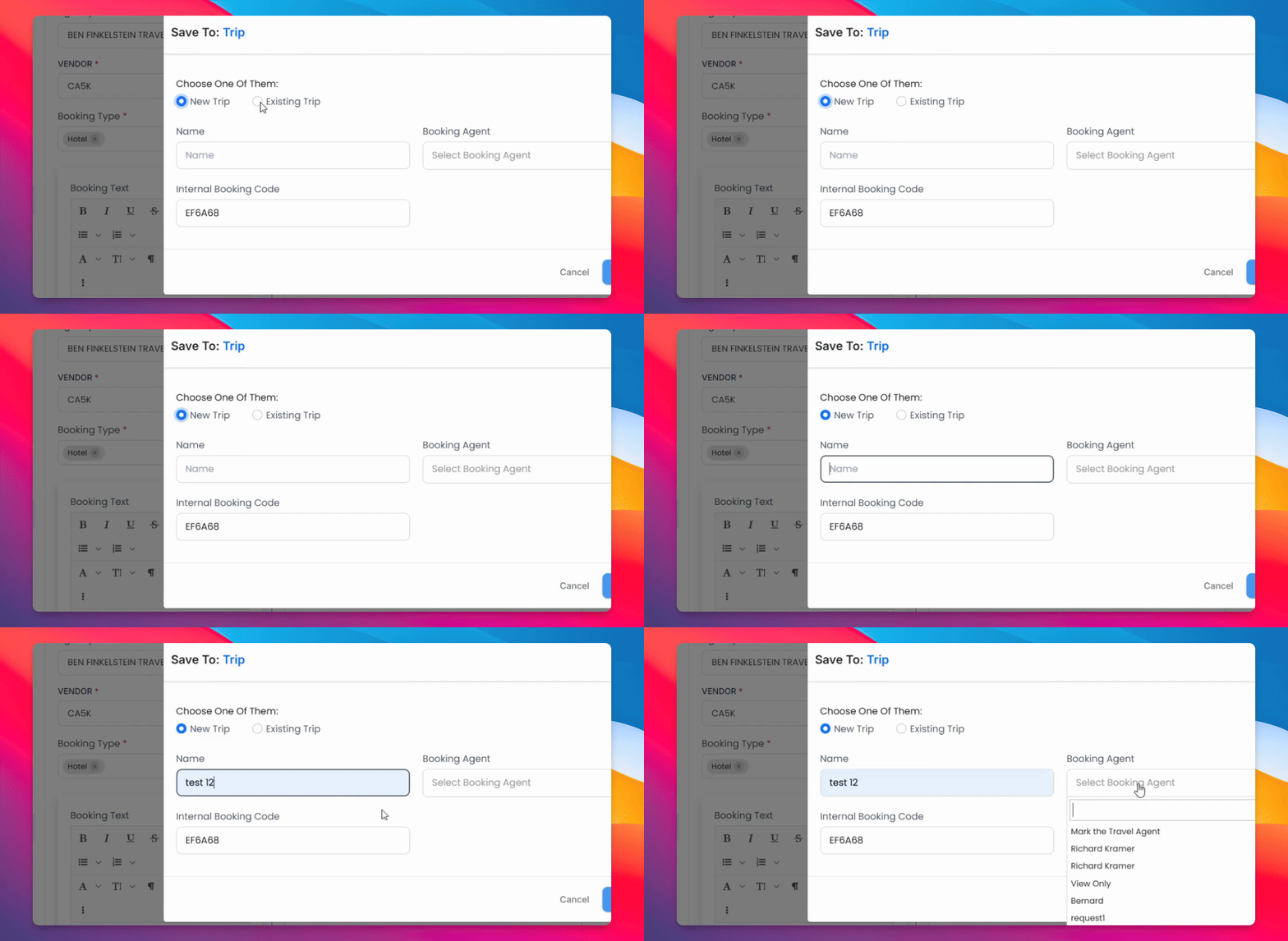
Step 9: Name New Trip
If it's a new trip, simply enter a name. Select the booking agent and submit.
You brought over a non GDS ticket directly into the system and all the information shows up here as reported.