

This guide covers how to import a trip from the GDS into Yalago using the PNR, verify booking details, manage accounting, and associate payments. Let's look at the steps:
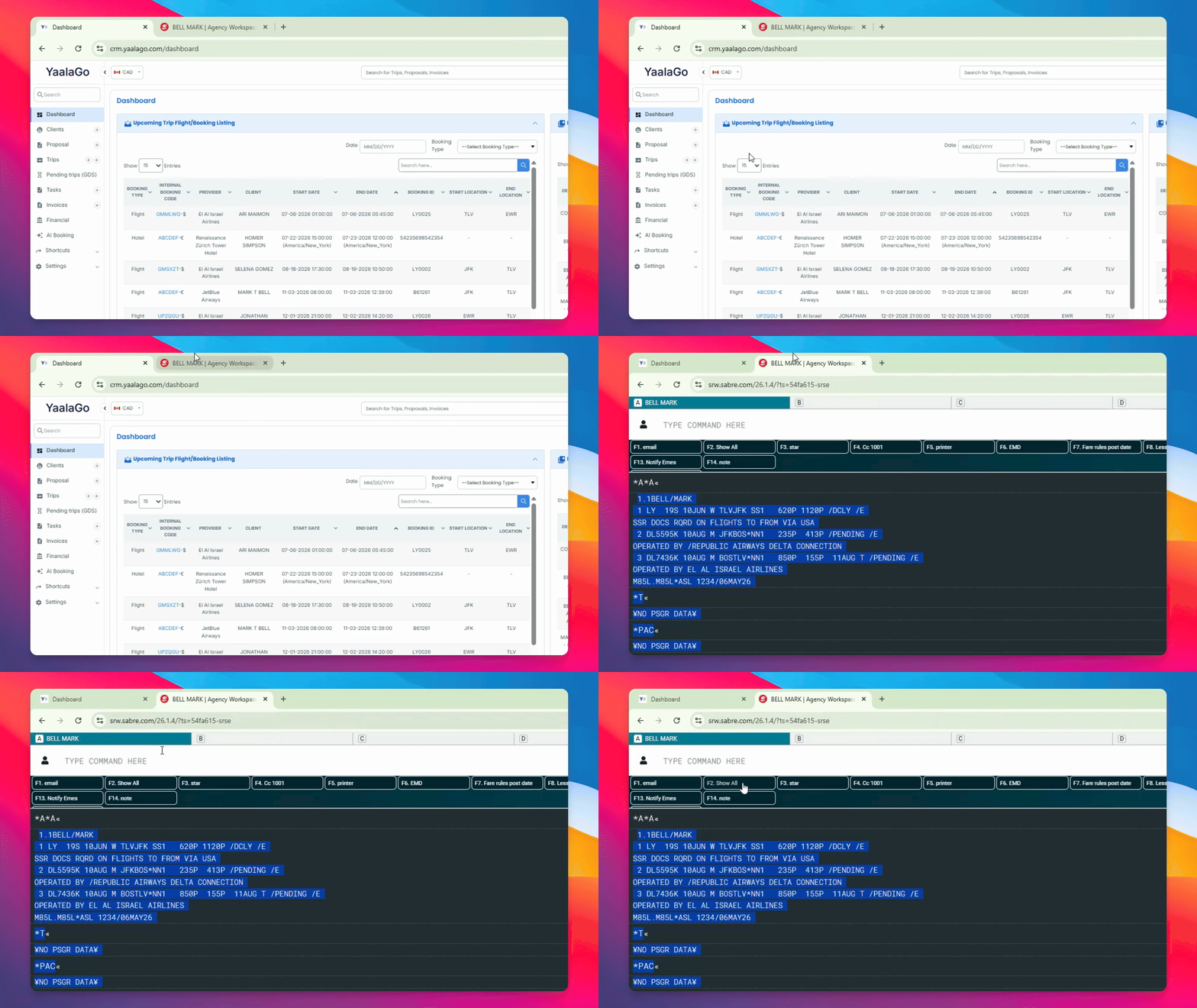
Step 1: Show All PNR Sections
Click the show all command to open all sections of the PNR, including both Sabre and Amadeus data.
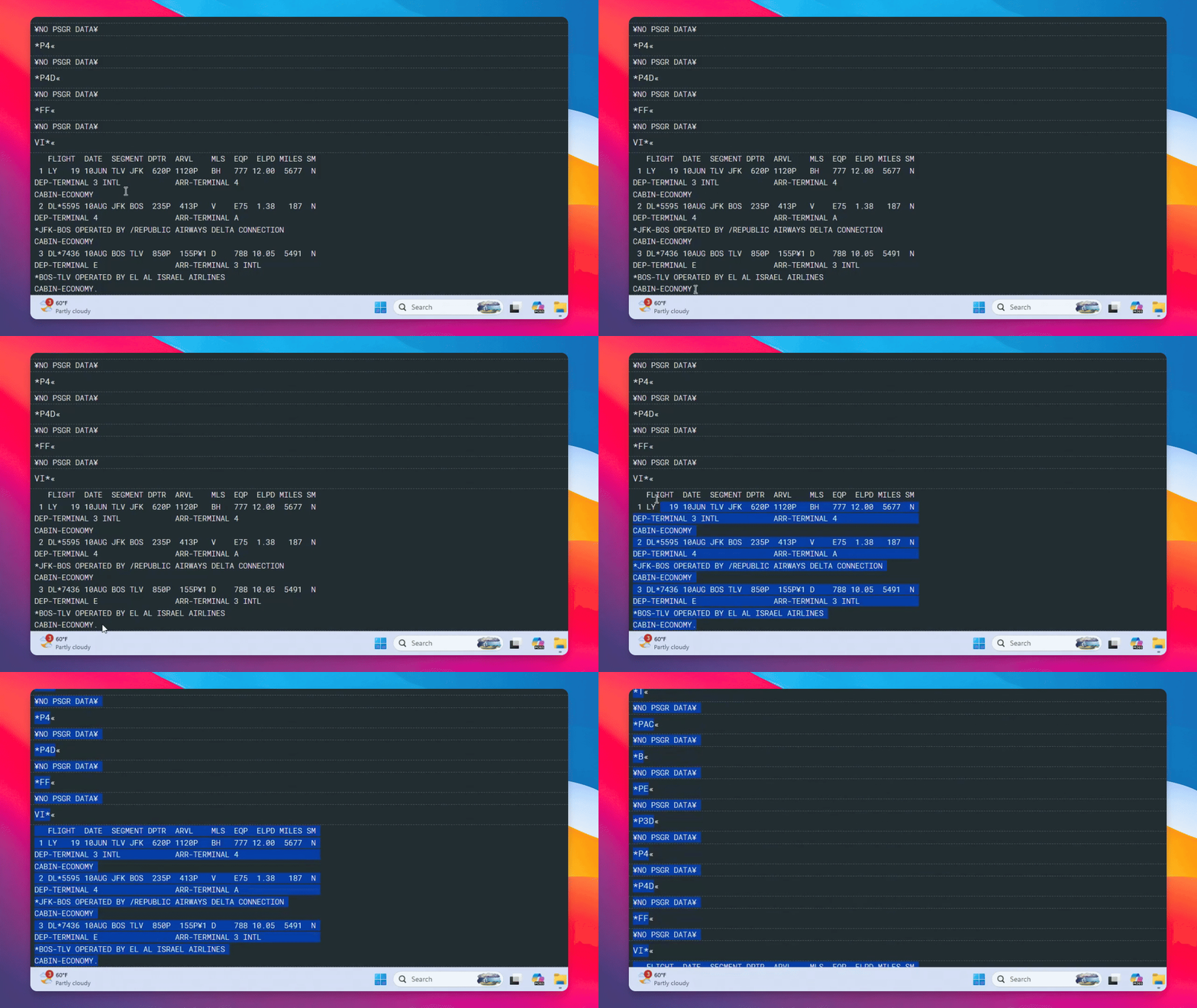
Step 2: Copy the PNR Data
Once the data is visible, highlight and copy the PNR information to your clipboard in Yalago.
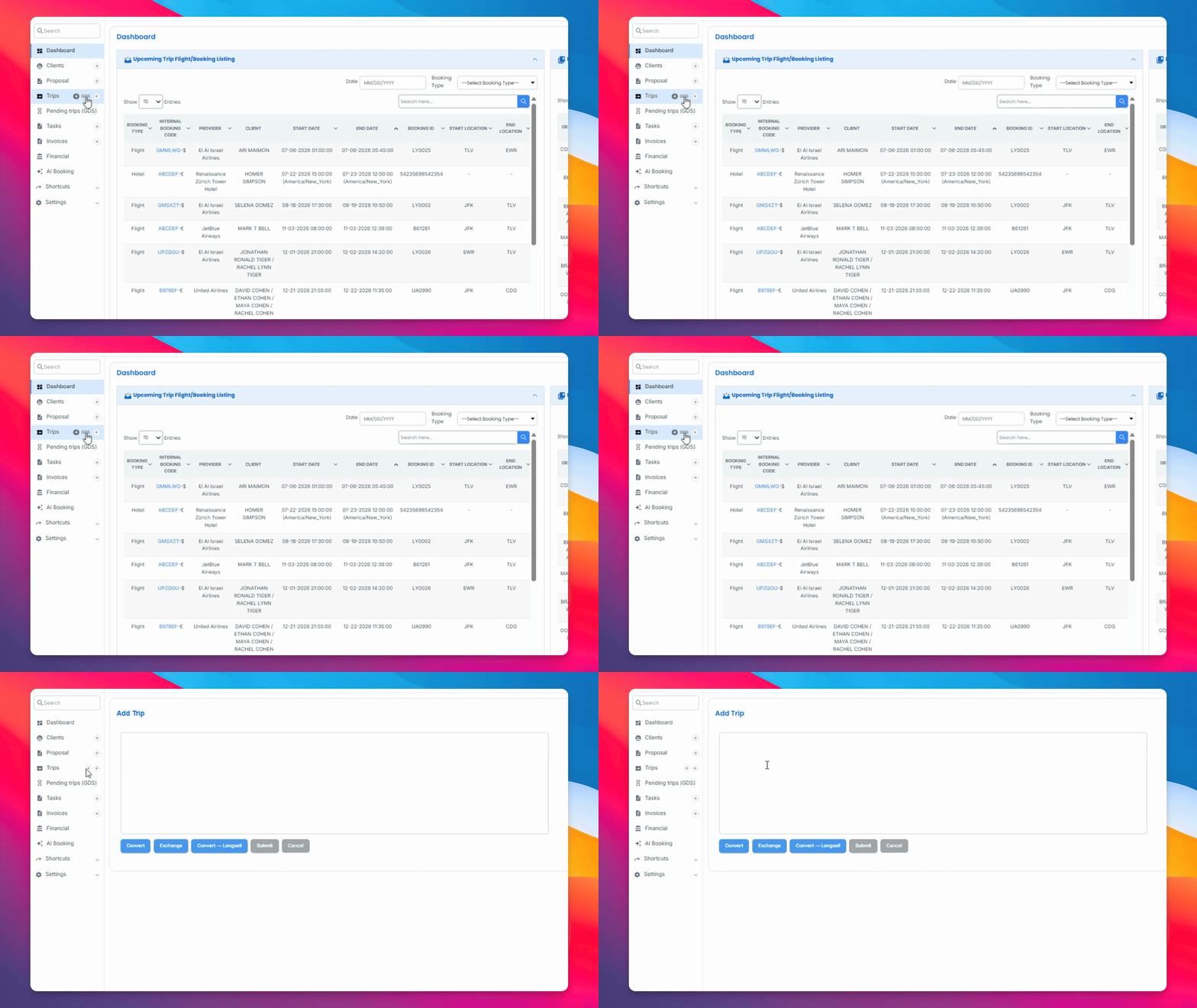
Step 3: Add Trip in GDS
Open GDS in Trips to access the add trip function. Paste the copied data and convert it.
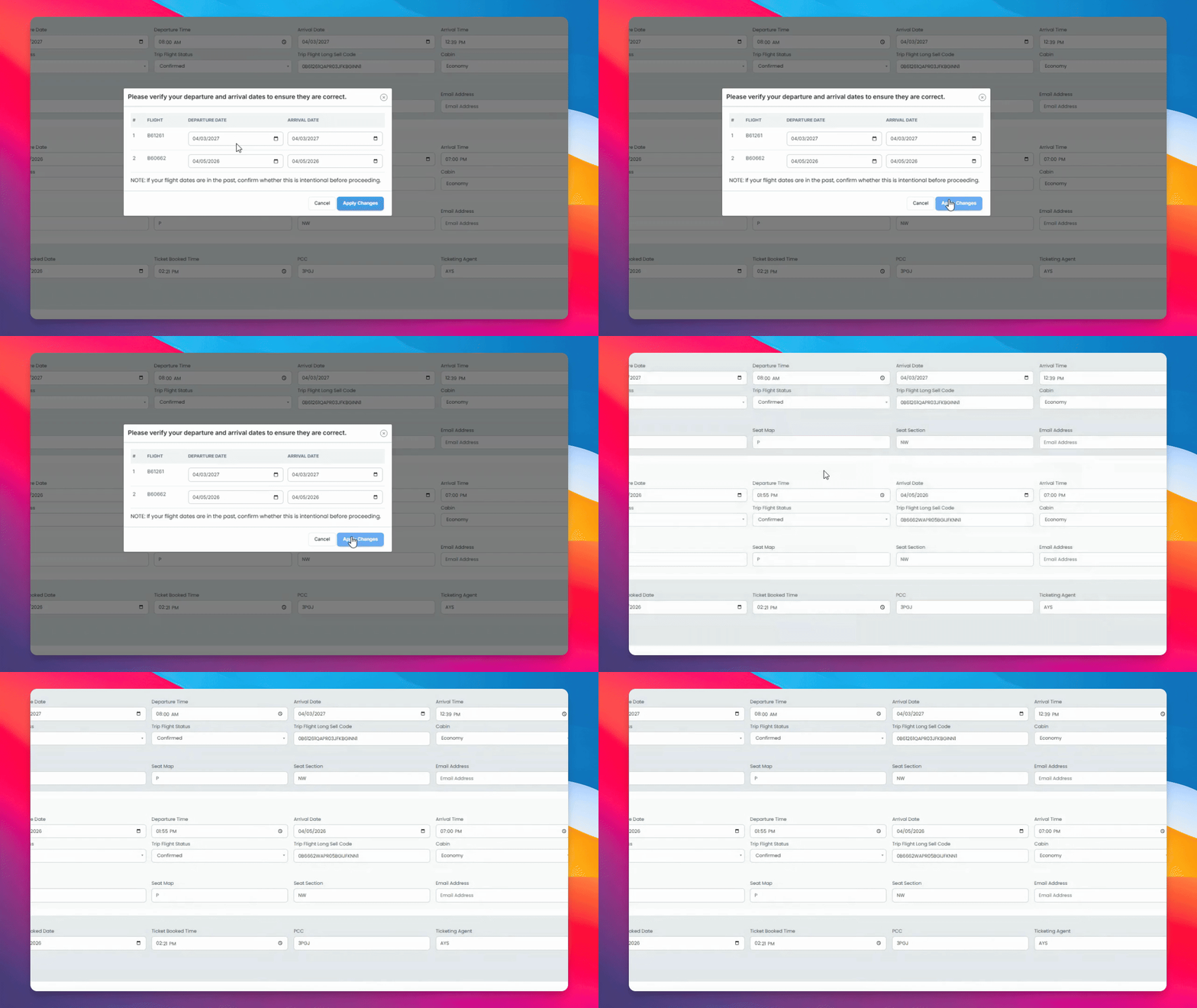
Step 4: Confirm Flight and Agent Details
Verify that the flight dates, booking agent, sales agent, and agency are correct. Assign the correct flights to the ticket numbers.
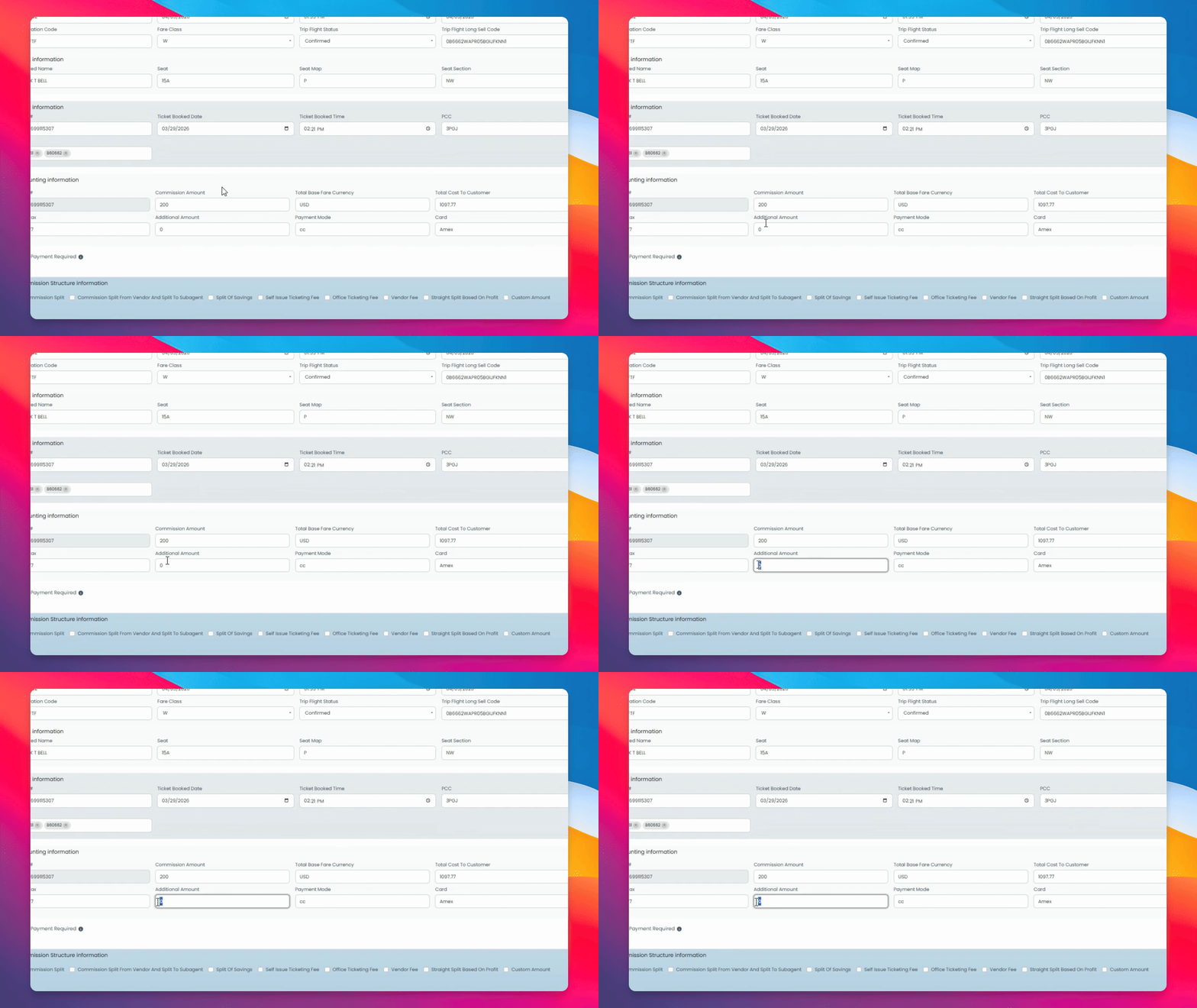
Step 5: Review Accounting Information
Check your accounting information and add any additional amounts as necessary.
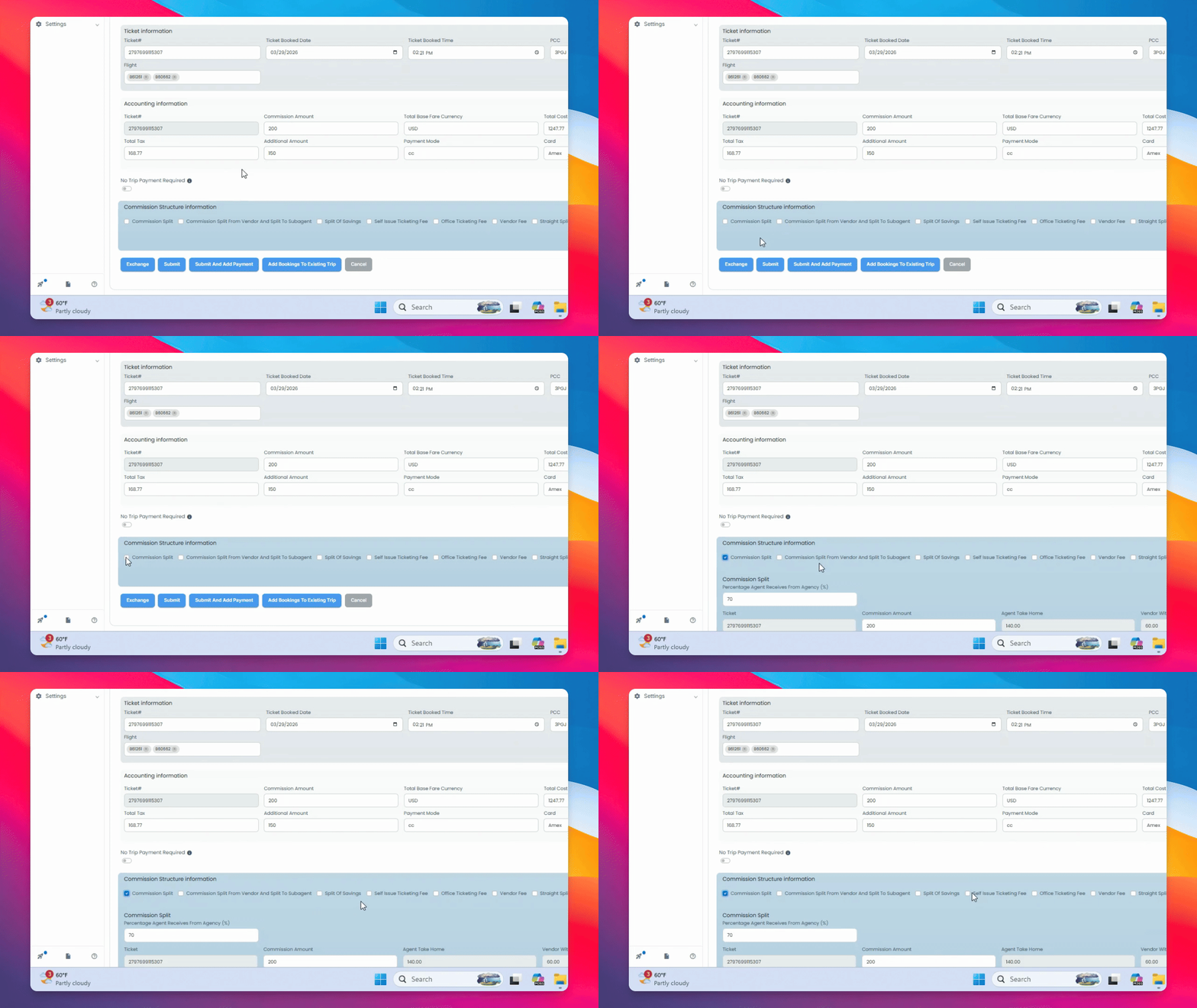
Step 6: Review Commission and Fees
Review commission splits and issuing fees as set up by your agency, then click Submit.
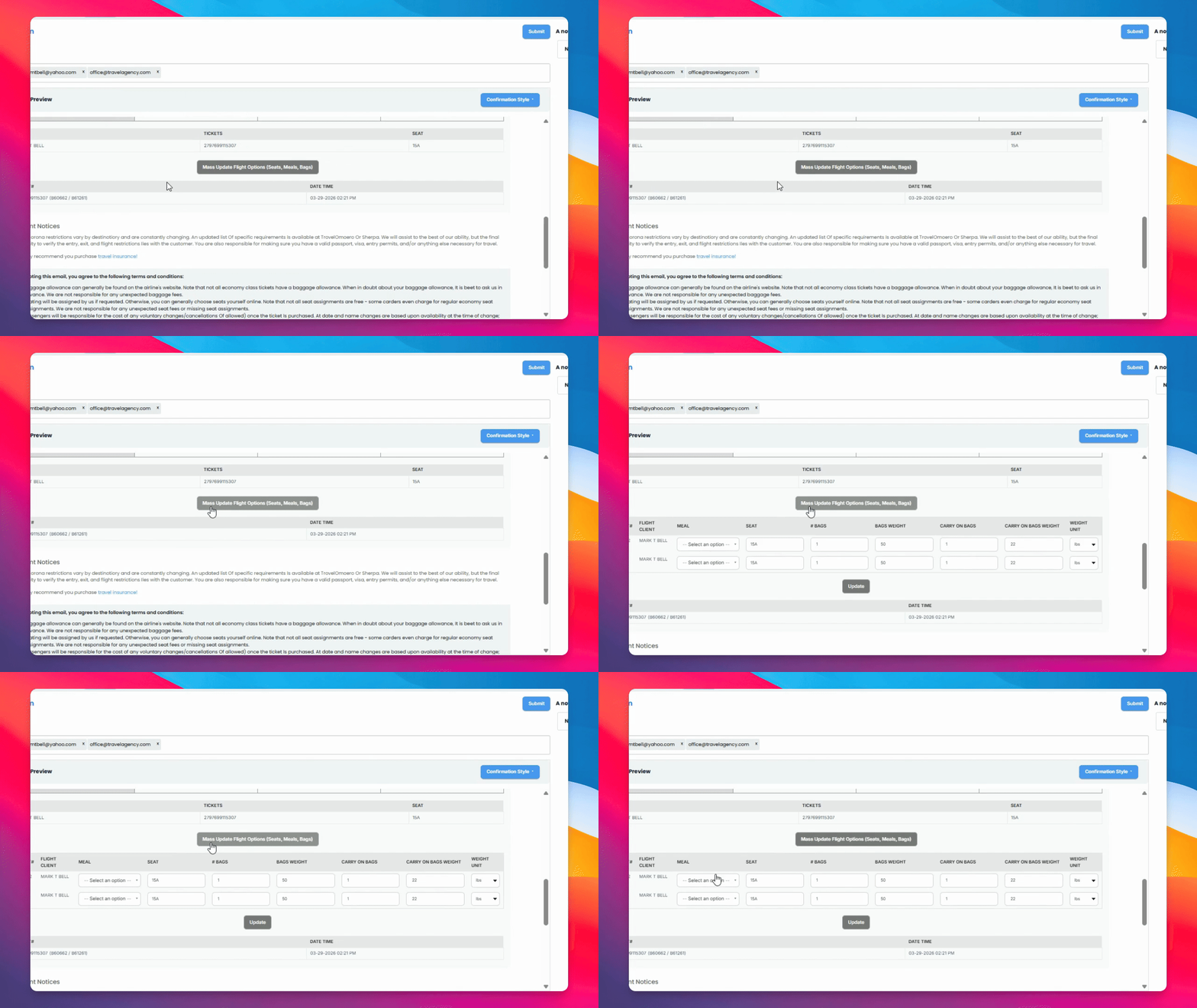
Step 7: Update Meals and Seating
Click Mass Update Flight Options to review and update meals and seating for your flights.
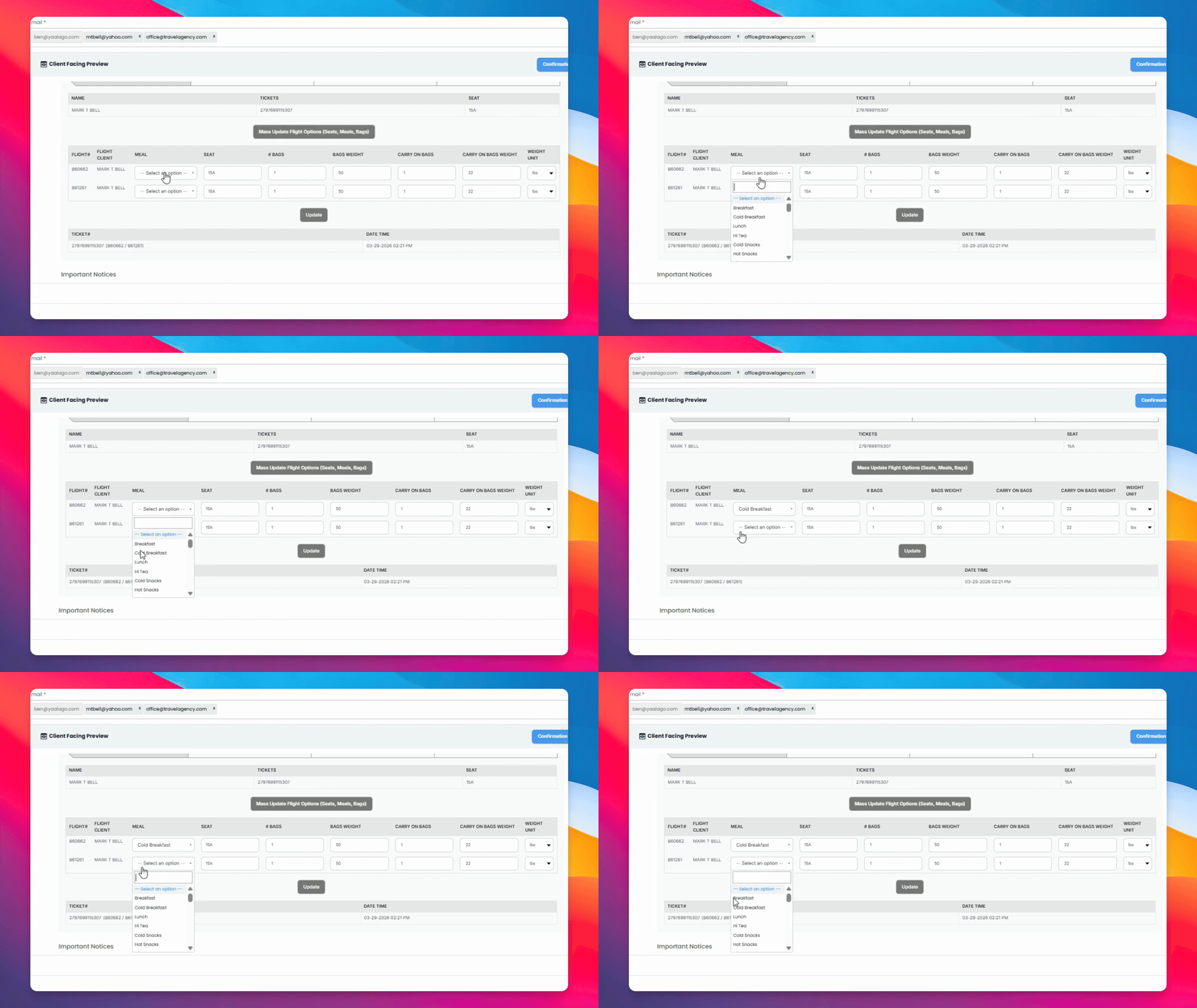
Step 8: Update and Preview PDF
After confirming all details are correct, click Update. The PDF preview will reflect your changes.
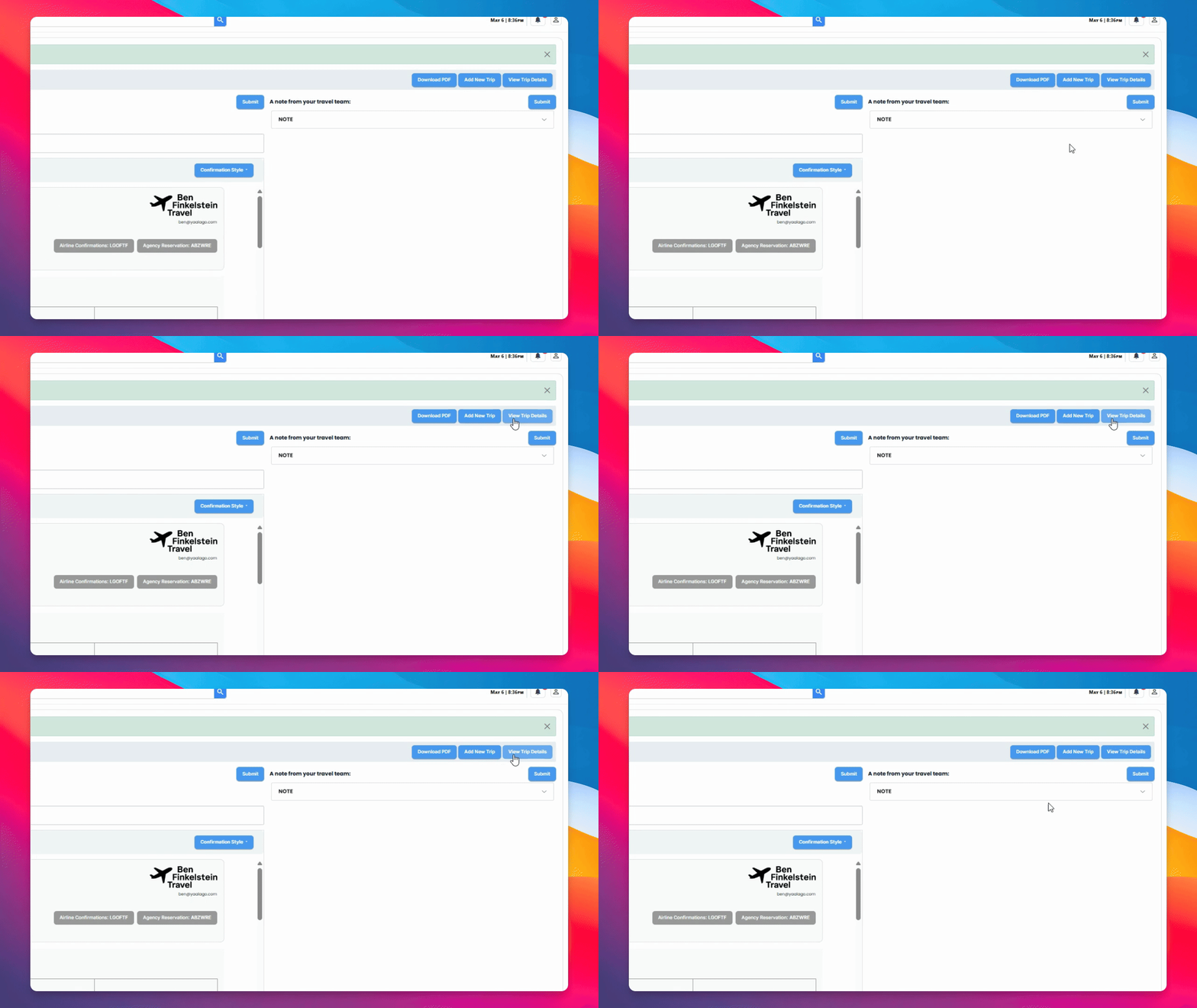
Step 9: Associate Payments
Go to trip details to associate payments.
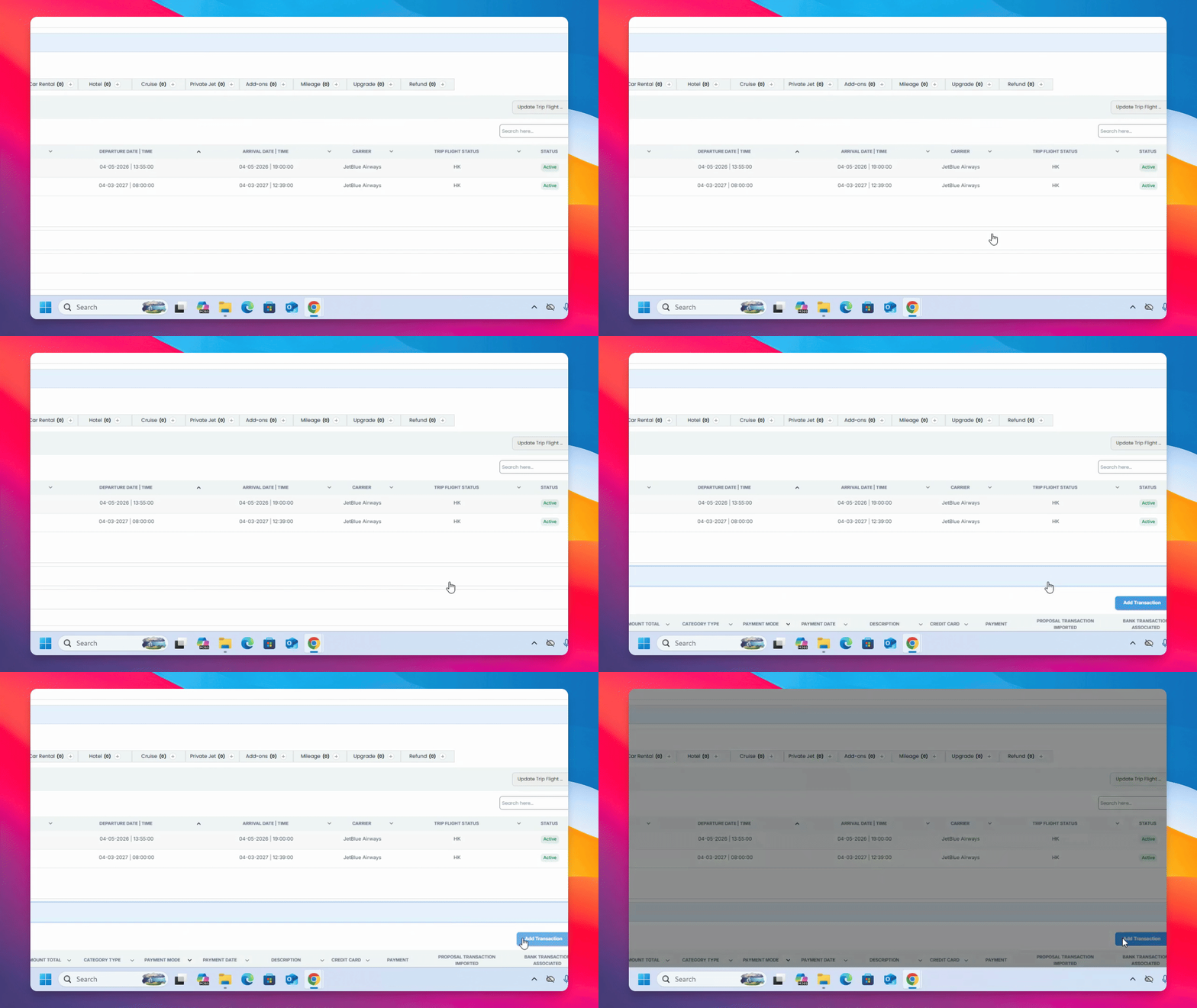
Step 10: Add Payment Transaction
Scroll down to Payment history and click Add Transaction.
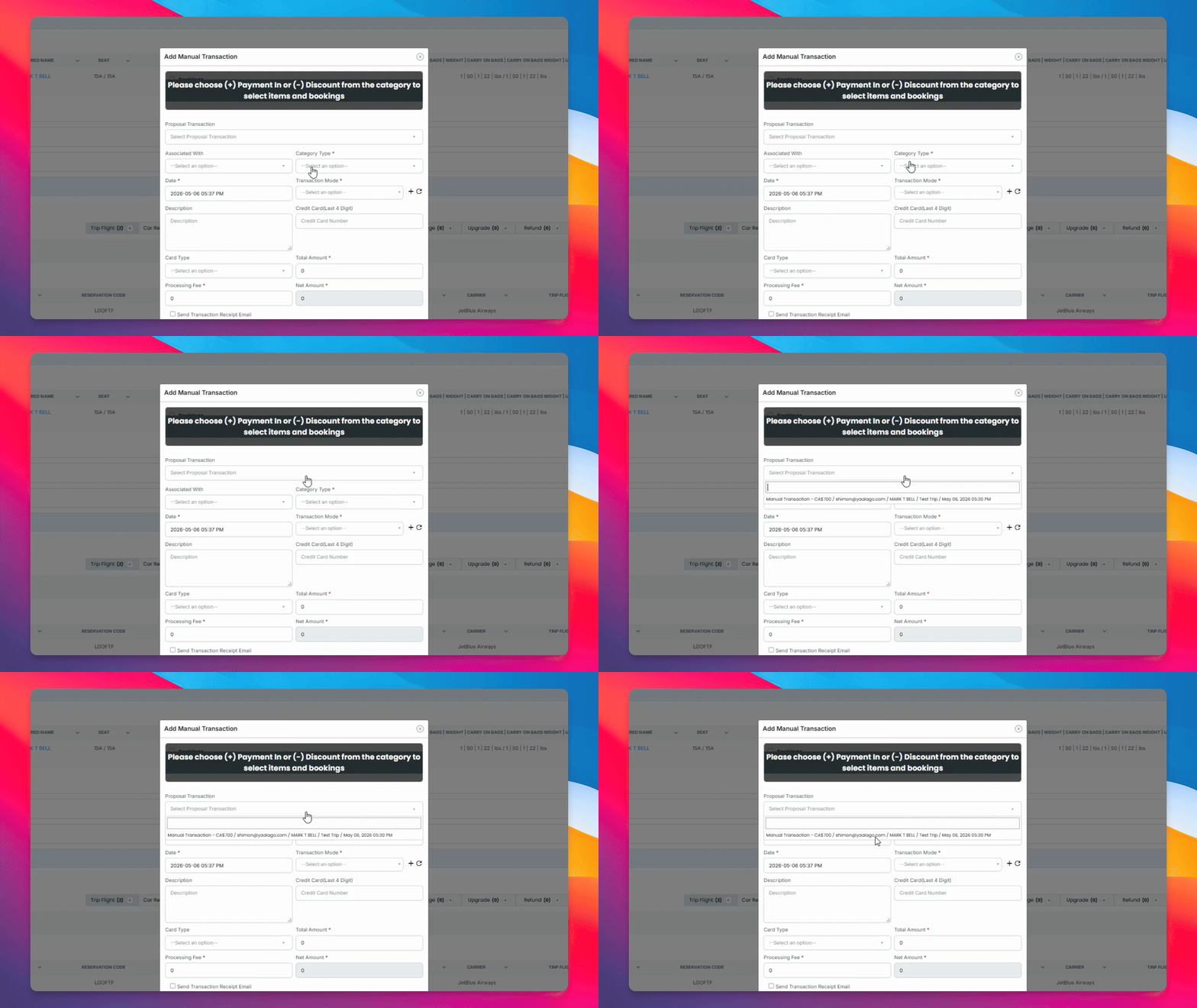
Step 11: Choose Payment Method
You can associate a payment from an existing proposal or add a manual payment using credit transaction modes and credit card payments.
Step 12: Submit Payments
Click Submit to add the payments.
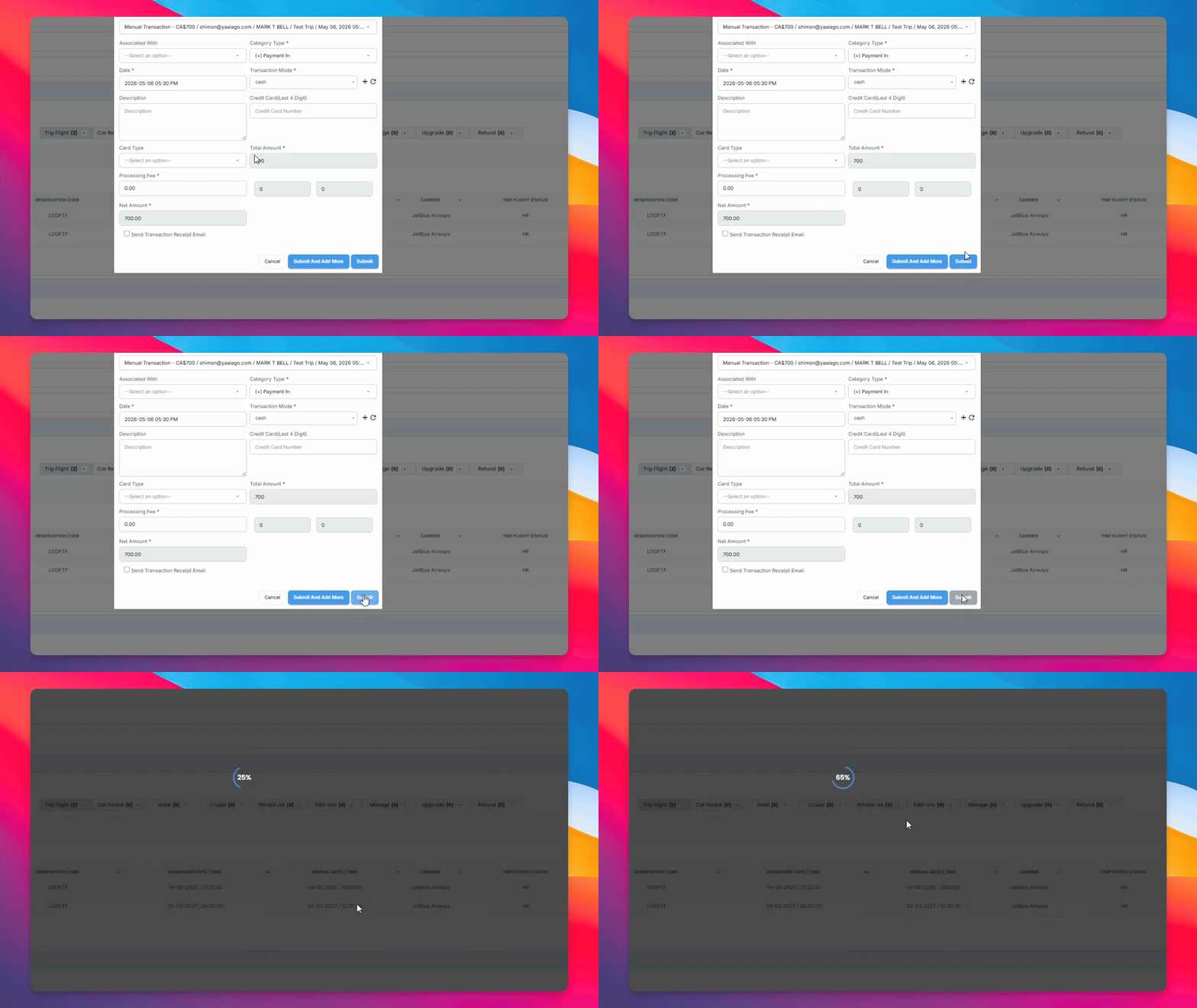
The revenue and expected profits will automatically adjust based on the received payments.