

After entering all your vendors and commission structures, it's time to review your profile and agency settings to make sure everything is configured to your preference. Let's walk through the steps:
Step 1: Select Profile
Head over to the navigation bar and select Profile.
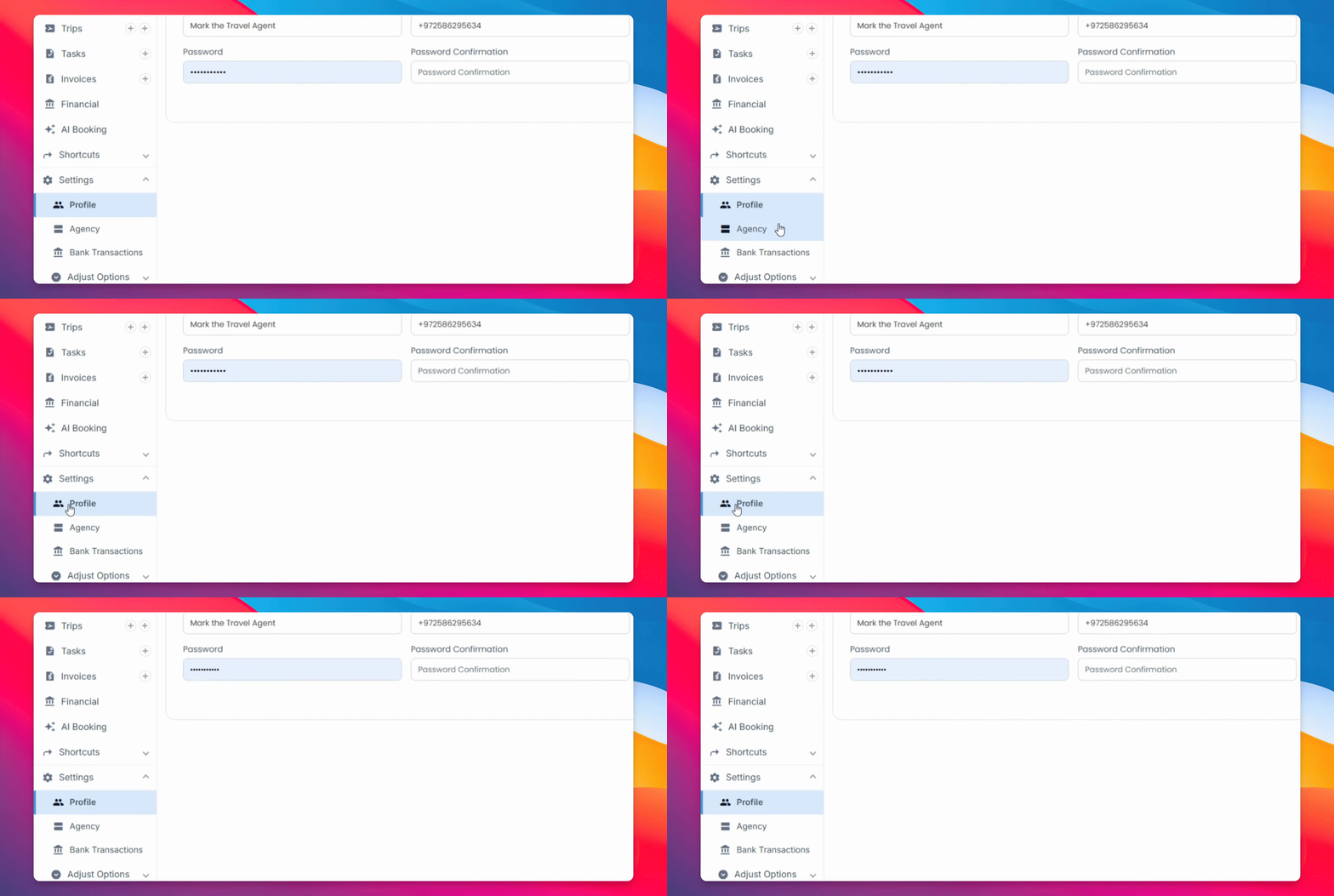
In your profile, you'll find several sections covering account information, permissions, and templates. Here you can view your agency name, the phone number associated with the account, and your username. You can also adjust your clock display (12-hour or 24-hour), update your password, and submit any changes.
In the Permissions section, you can view everyone who currently has access to your account.
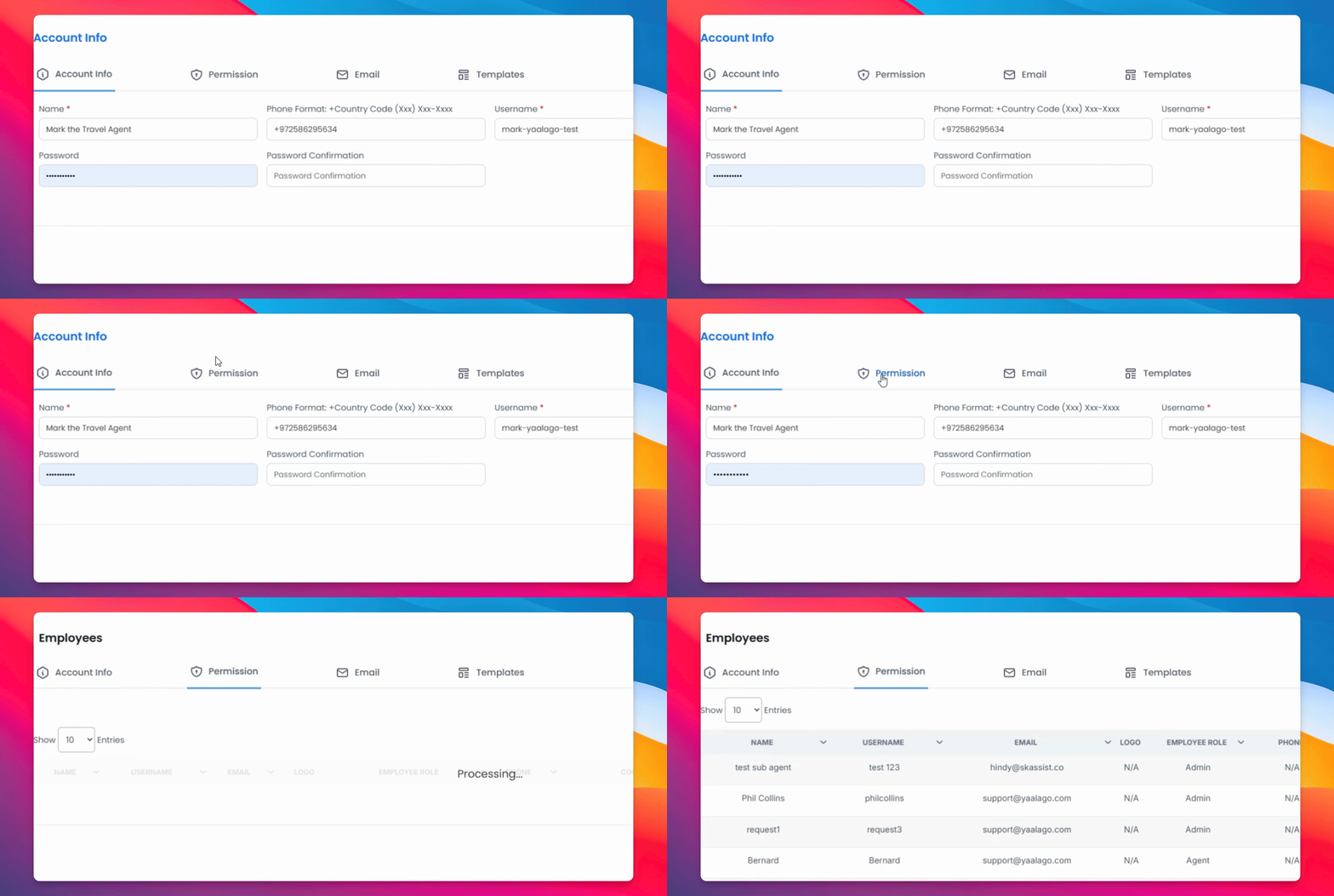
In the permissions section, you can view all the people who have access to your account.
Step 2: Add an Employee
To add a new employee, click Add Employee and fill in their details, including:
Role type
Name
Address
Phone number
Username
Email
Signature (if applicable)
Commission percentage
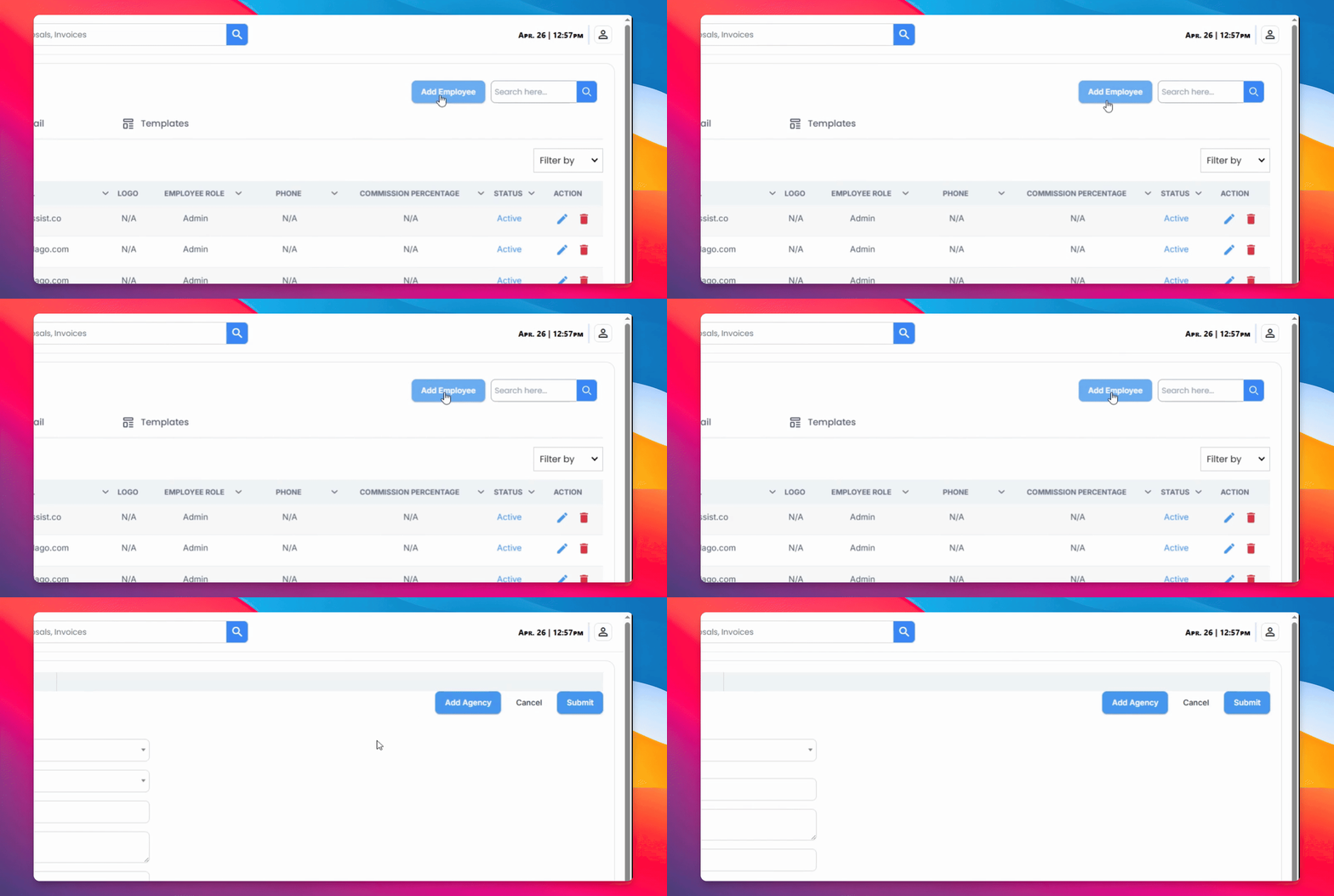
Make sure to set their status to Active and select their preferred clock format (12-hour or 24-hour).
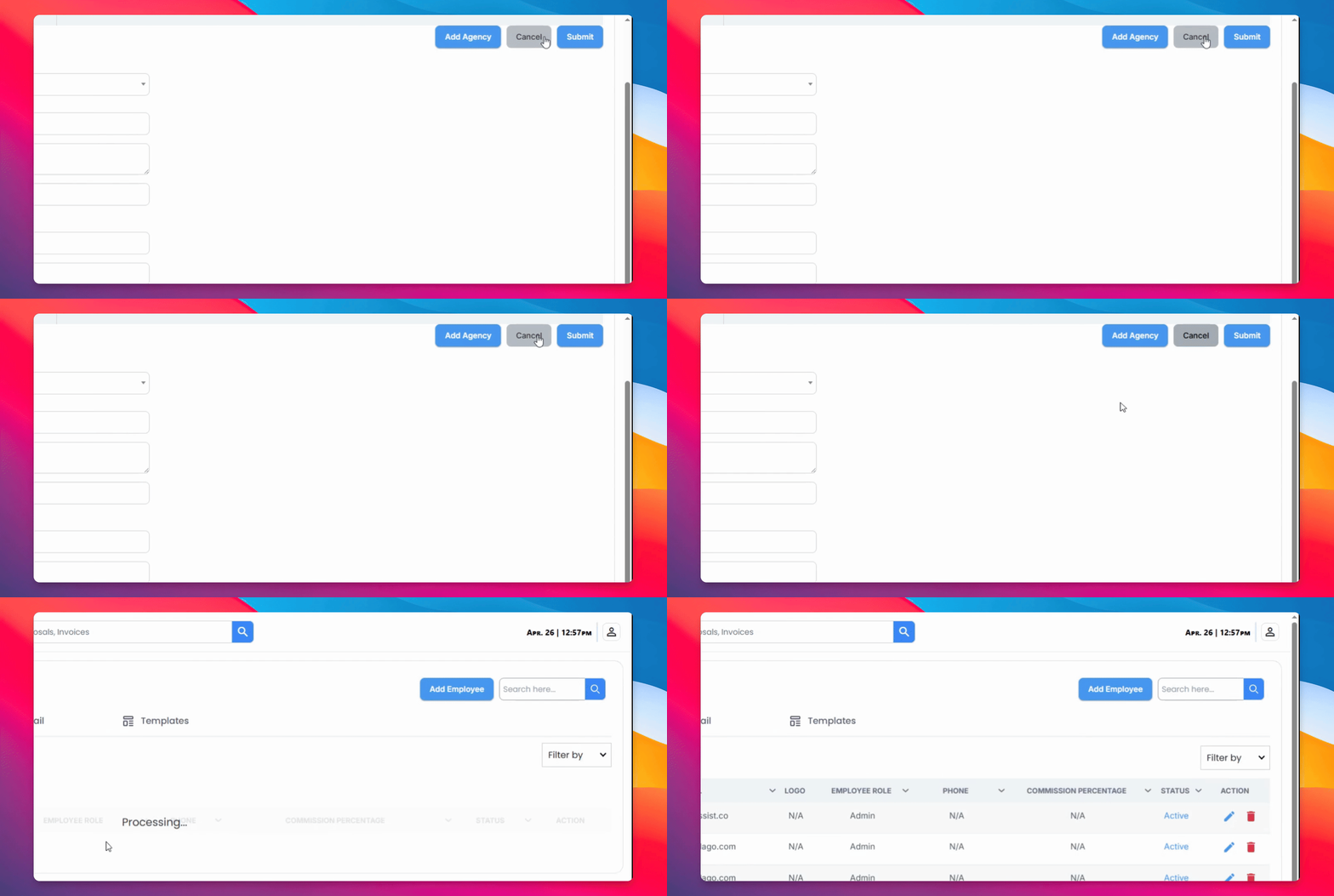
Step 3: Email Templates
Navigate to the Email Templates section, where you'll find a range of customizable templates used throughout Yaalago, including flight reminders, invoices, payment reviews, and transaction receipts.
If you need help making specific changes for your agency, don't hesitate to reach out.
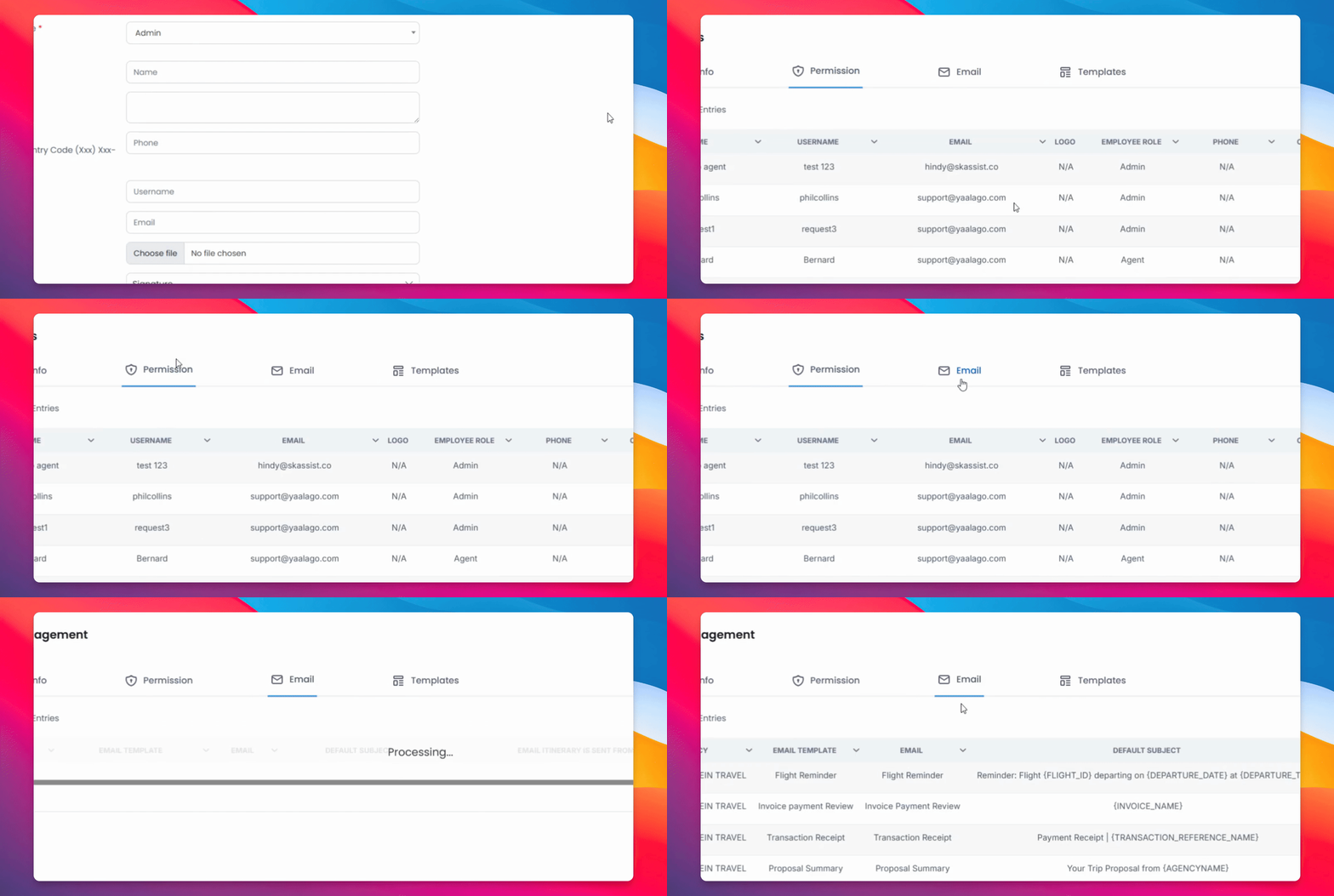
You can toggle any template between active and inactive, and edit the content by clicking the pencil icon.
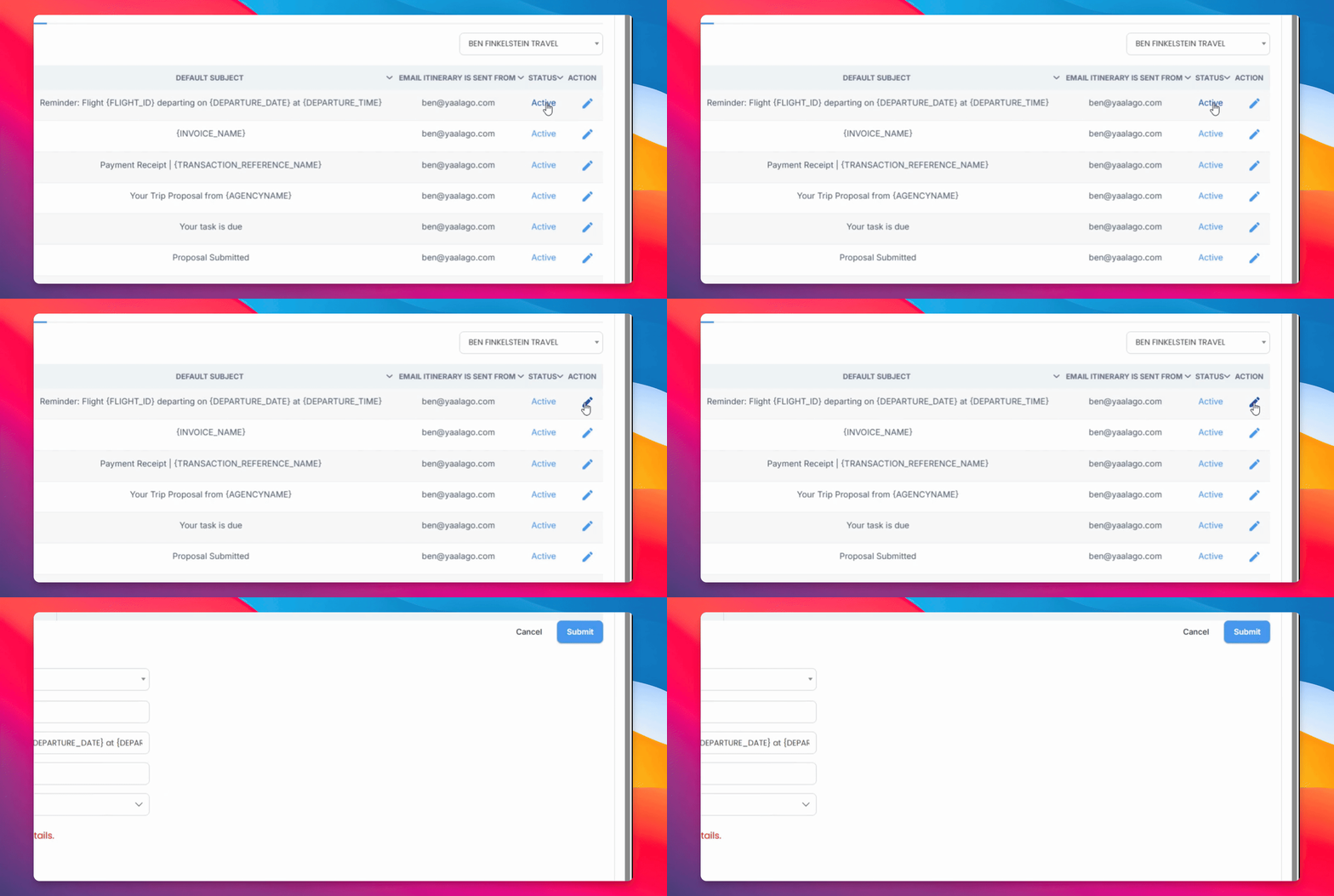
Select a template from the list to open it and edit any details, including the email body.
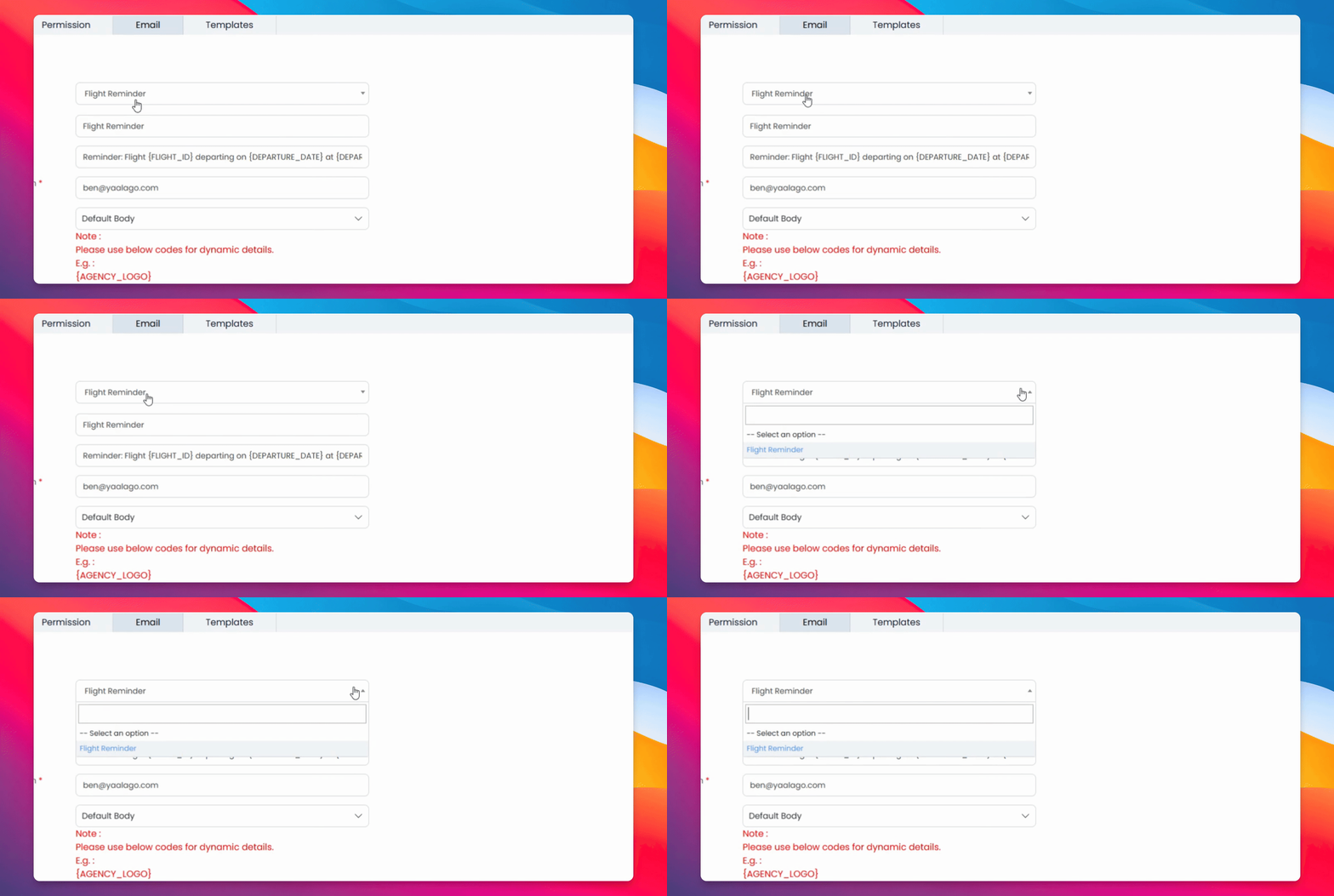
If you need help making specific changes for your agency, don't hesitate to reach out.
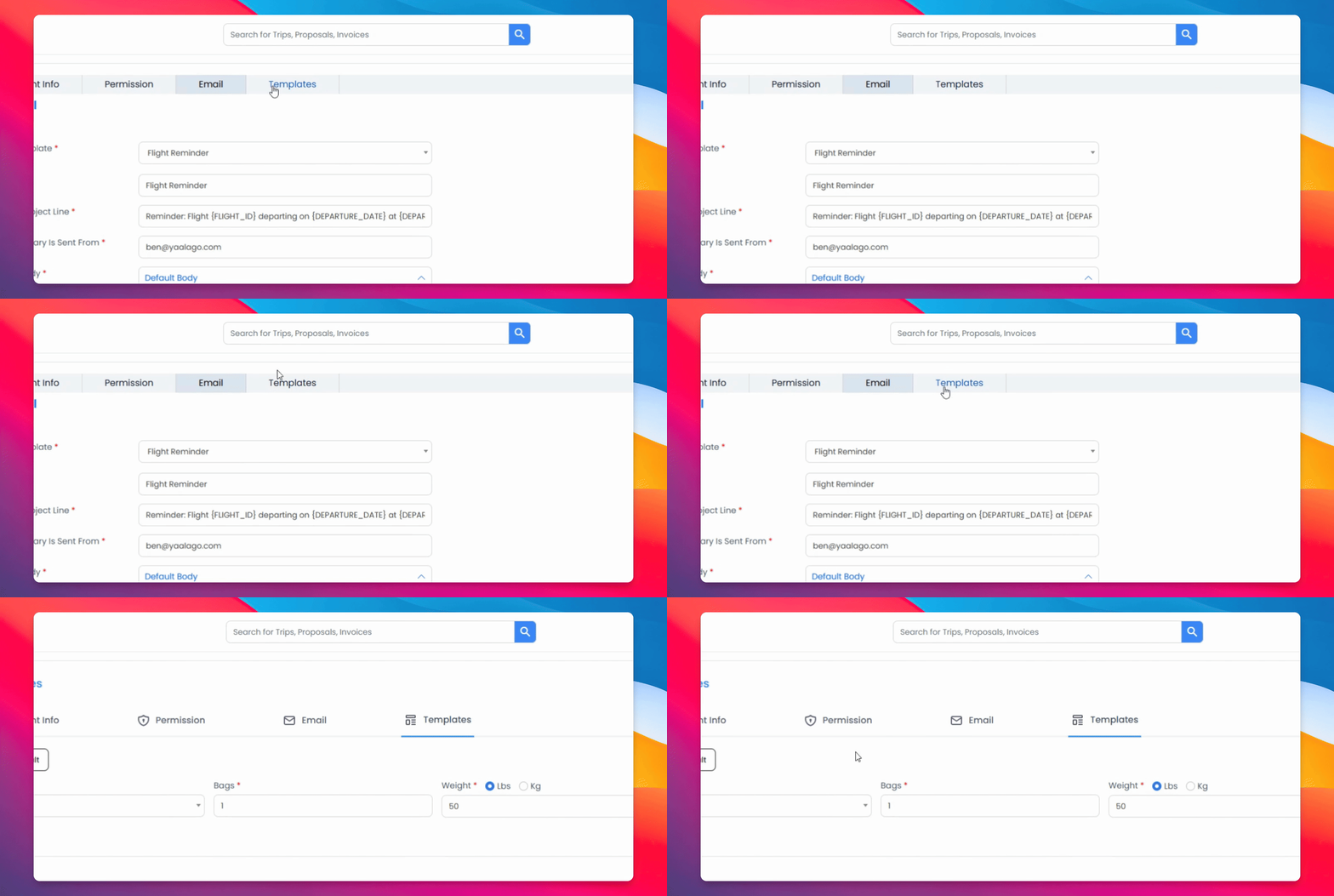
Step 4: Trip Defaults
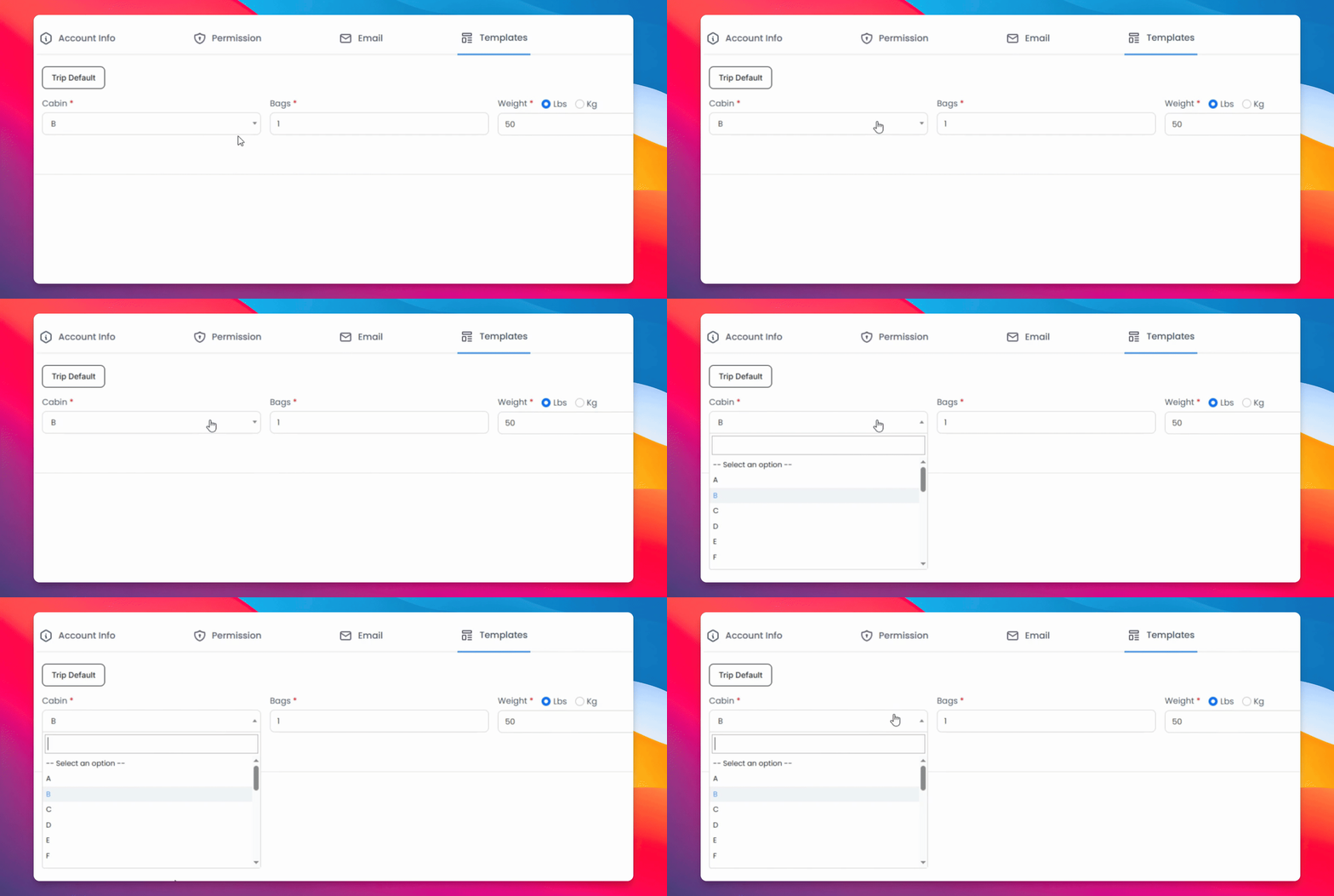
In the Trip Defaults section, configure the default settings that will appear on confirmations:
Cabin class — defaults to B, but can be changed
Number of bags to be included on confirmations
Weight unit — pounds or kilograms
Total weight that will display on confirmations
Now that your profile is configured, you're one step closer to having your account fully set up. In the next video, we'll be walking through your agency settings, where you'll be able to fine-tune how your agency operates within the platform.